Purview DLP is coming to Intune-managed mobile apps!

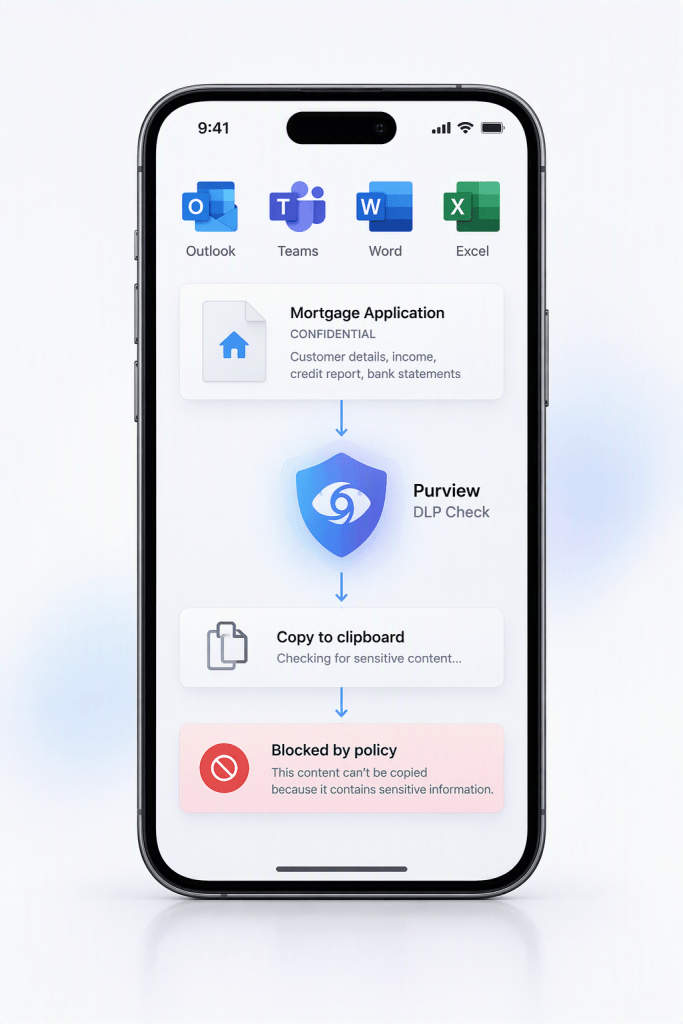
Microsoft recently announced the upcoming (Jan ’27) integration of Microsoft Purview Data Loss Prevention (DLP) with Intune Mobile Application Management (MAM) protected mobile apps.

Until now, a lot of mobile data protection has focused on controlling actions such as copy, paste, save-as and data transfer between managed and unmanaged apps. This new capability takes things a step further by making those decisions content-aware.

Instead of simply asking “Can the user copy this?”, organisations can now ask “What is the user trying to copy?”

Clipboard actions in supported managed mobile apps can be evaluated against Purview DLP policies before data is shared. That means sensitive information can be identified and protected based on the content itself, helping to reduce the risk of accidental data leakage from mobile devices.

As mobile devices continue to play a larger role in modern work, bringing Purview’s content-aware protections to Intune MAM feels like a logical next step in strengthening data security wherever users work.

Read the M365 roadmap entry for this feature: https://www.microsoft.com/en-gb/microsoft-365/roadmap?id=567311

Protecting against prompt injection attacks on local AI agents

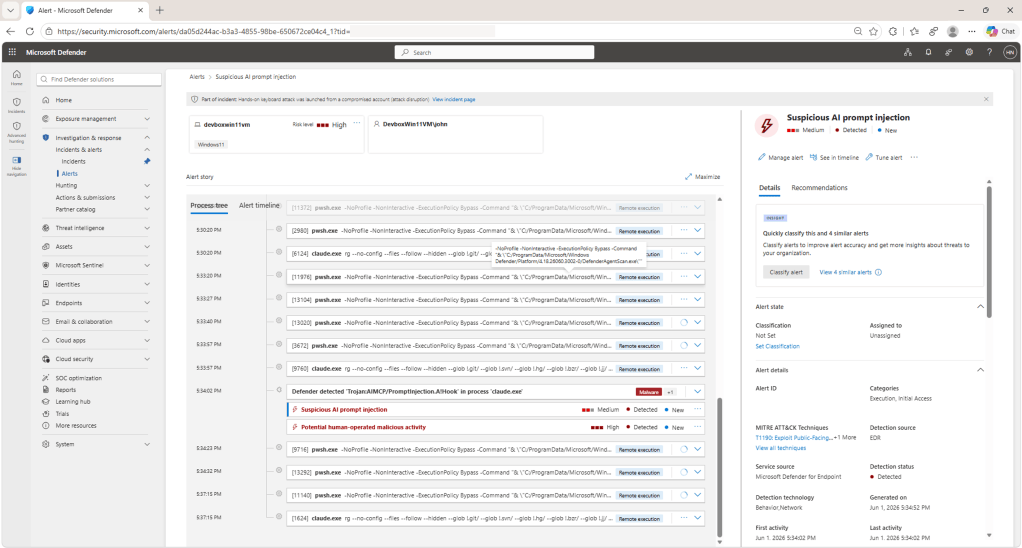
How can you protect against prompt injection attacks against local AI agents on devices? Well, Intune now has a policy template for Defender’s AI agent runtime protection (in Preview).

In Intune > Endpoint security > Antivirus, create a Windows policy and choose Microsoft Defender AI agent runtime protection. Set AI Agent Protection to Audit and assign a small test device group. Then check Effective settings on the device page in the Defender portal.

Watch out for the scope of that template. It configures agent-native event inspection. Network inspection needs a separate PowerShell platform script through Intune.

I wouldn’t tick the first setting and assume every local AI application was covered.

The prerequisites need attention too. Devices must be onboarded to Defender, with antivirus in active mode and real-time protection enabled. During preview, Microsoft directs test devices to the Beta Channel for platform and engine updates. Keep that on the test ring.

Licensing requires Microsoft Defender for Endpoint Plan 2, Microsoft 365 E5, Microsoft Agent 365, or Microsoft 365 E7, plus Intune for this deployment route.

https://learn.microsoft.com/en-us/defender-endpoint/configure-ai-agent-runtime-protection

Microsoft Intune Deployment Plans in Preview

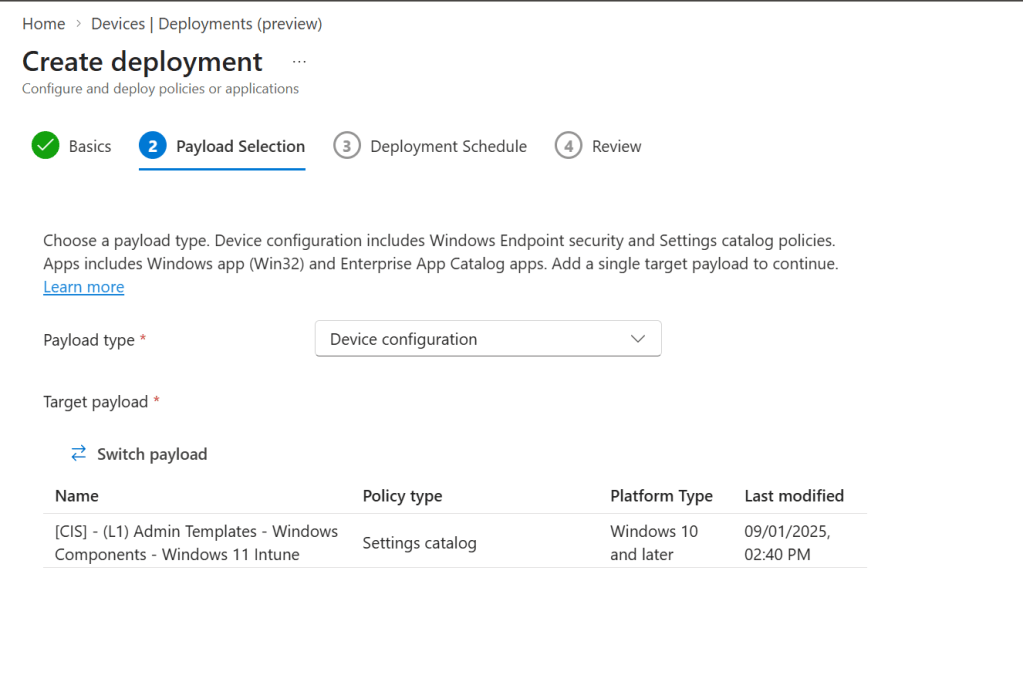
Intune deployment plans are now in public preview. Why? Because repeatedly changing group assignments to move a rollout along is a faff, and this gives us a reusable way to stage it.

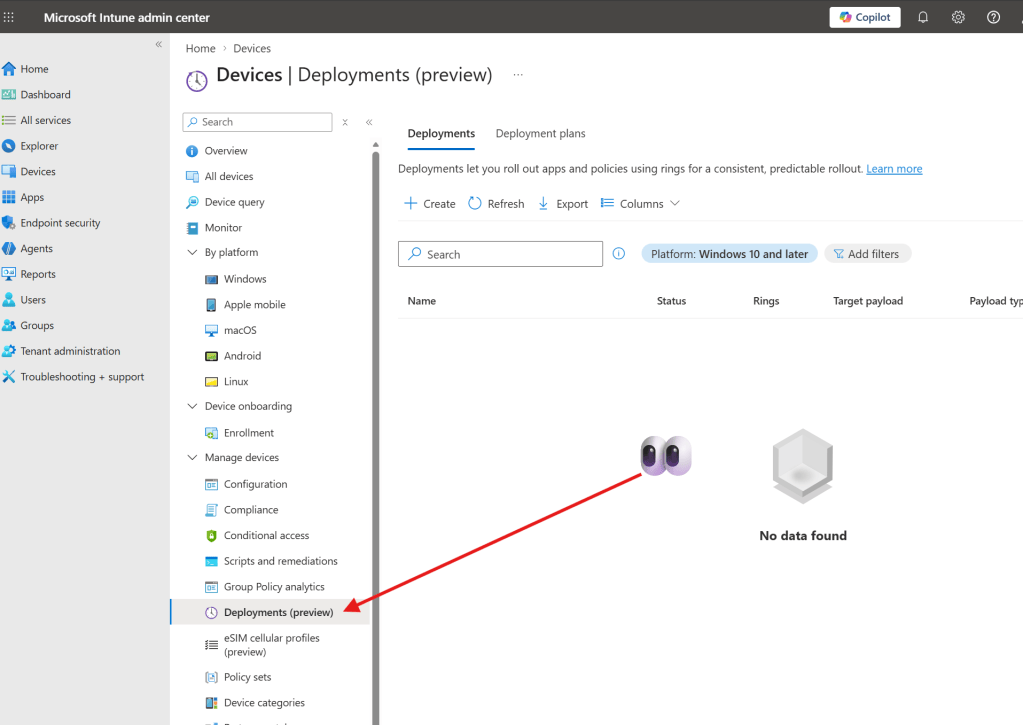
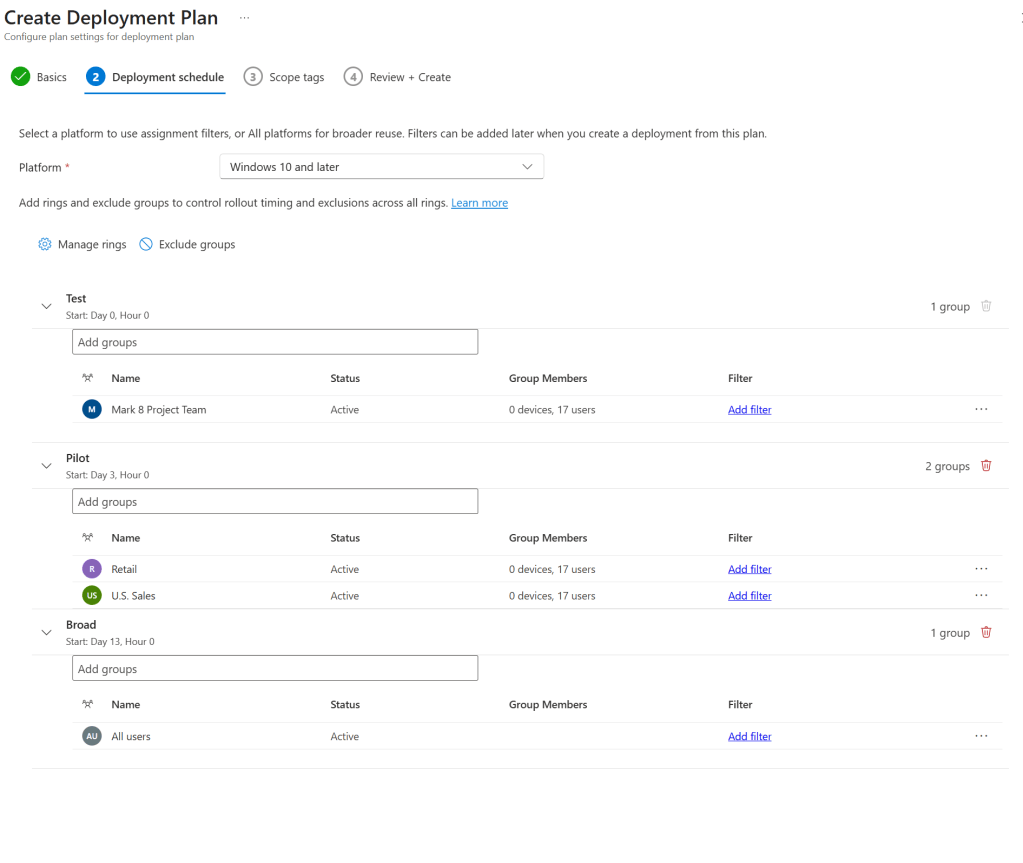
Start in Devices > Manage devices > Deployments. Create a plan with your test, pilot and broader groups, then set the wait between rings. The plan holds the rollout pattern; a deployment uses it to deliver one app or policy. I would begin with a harmless settings catalog change on test devices.


Watch out for existing assignments. They remain on the underlying app or policy, so a pre-existing broad assignment can defeat your carefully staged deployment plan. If a group assignment collides with an existing payload assignment (payload being the underlying app or policy), Intune places the deployment in an error state and prevents further rollout until the conflict is resolved.

The preview supports Windows Win32 apps, Enterprise App Catalog apps, settings catalog policies and endpoint security policies. For apps, it supports Required installations, not Available or Uninstall. Enterprise App Catalog auto-update is not supported with deployments.

This of course does not replace the need to test the payload changes yourself before you send it to your deployment plan! You can pause, resume or cancel deployments, but cancelling a deployment doesn’t automatically act as a rollback, so consider how you’ll recover devices that have already received the change.

https://learn.microsoft.com/en-us/intune/device-management/deployments/overview

Intune Compliance will soon detect shadow AI

Intune Admins, AI governance is coming to you too muh hahaha 😁

On the Intune roadmap: Admins will be able to define a list of prohibited local agents (OpenClaw is the named example); detection flips the device to non-compliant and Conditional Access bites until it is removed.

This is an exciting endpoint-side control customers can point at for shadow AI agents – expect it in every AI-governance workshop

Roadmap Link: https://learn.microsoft.com/en-us/intune/whats-new/in-development#mark-windows-devices-noncompliant-when-prohibited-ai-agents-are-discovered

How to Disable Windows Copilot using Intune or Group Policy

In this post I will explain how to use Microsoft Intune or Active Directory Group Policy to disable Windows Copilot for one or more users.

Introduction

On 26th September 2023, Microsoft released optional update KB5030310, one of the most ground breaking updates to Windows in recent times. With it comes Windows Copilot, which for millions of users worldwide will serve as an introduction to using an AI powered chat interface to enhance their day to day productivity.

Many organisations are still adjusting to the march to an AI enabled workplace and so need some time to test and understand before unleashing it for their workforce.

Disable with Intune

Edit: 23/10/2024 - in May 2024 Microsoft have deprecated the TurnoffWindowsCopilot policy CSP that is referenced in the steps below. This means the Intune steps in this post will not work. See Microsoft's post on the subject:  https://techcommunity.microsoft.com/t5/windows-it-pro-blog/evolving-copilot-in-windows-for-your-workforce/ba-p/4141999

A recent addition to the Policy CSP is the TurnOffWindowsCopilot setting, documented here. At the time of publishing this post there is no built-in setting in Intune to manage Windows Copilot. So we will create a custom OMA-URI policy:

  • In Intune, select Devices > Windows > Configuration Profiles > Create profile.
  • Under Platform select Windows 10 and later.
  • Under Profile type select Templates.
  • Under Template Name select Custom > select Create.
  • Name the profile something meaningful.
  • Under Configuration Settings select Add.
  • Set the name to something meaningful.
  • Under OMA-URI enter the below text:
./User/Vendor/MSFT/Policy/Config/WindowsAI/TurnOffWindowsCopilot
  • Set Data type to Integer.
  • Set the Value to 1 (setting it to 0 will enable Windows Copilot which is the default setting).
  • Save the policy and assign it to a security group containing users for whom you wish to disable Windows Copilot.
  • No reboot is required. When the user next signs in, the Windows Copilot icon in the taskbar will have been removed.
The Administrative Template that is used in the Group Policy version below cannot be imported in to Intune as a Custom Administrative Template. When you come to apply it to a device it will fail because it tries to modify a protected part of the registry.

Disable with Group Policy

Pre-Requisites

  • Obtain the WindowsCopilot.admx and WindowsCopilot.adml files from the C:\Windows\PolicyDefinitions file of a Windows 11 device that has the KB5030310 installed on it.
    • When Windows 11 23H2 is released it will include the same files.
    • Alternatively, you can download the files from my Github here.

Implement Group Policy

  • Import the WindowsCopilot.admx file to the PolicyDefinitions folder in your domain. This will either be C:\Windows\PolicyDefinitions on your Domain Controllers or if you have a central store configured (which you should do), it will be in a location like:
\\contoso.com\SYSVOL\contoso.com\policies\PolicyDefinitions
  • Import the WindowsCopilot.adml file to the PolicyDefinitions\en-US folder.
  • On a Domain Controller or from a device with the AD DS management tools installed, open Group Policy Management console.
  • Create a new Group Policy Object and name it something meaningful.
  • Edit the GPO, expand User Configuration > Administrative Templates > Windows Components > Windows Copilot
  • Open the setting Turn off Windows Copilot.
  • Set it to Enabled.
  • Select OK. The policy will now look like this:
  • Link the GPO to an Organisational Unit that contains users for whom you wish to disable Windows Copilot.
  • No reboot is required. When the user next signs in, the Windows Copilot icon in the taskbar will have been removed.

Summary

Windows Copilot provides an opportunity for users to begin experimenting with a new way to command their computers. In a production environment, it is important to use deployment rings such as Test, Pilot and Broad to prepare for and understand the impact of any change to the environment. An ability to roll back for individual users is most welcome. Fortunately, Microsoft have made it easy to switch Windows Copilot on and off on a targeted basis.

Universal Print with Intune Settings Catalog and upprinterinstaller.exe popups

In 2022, Microsoft added the Universal Print policy CSP to the Intune settings catalog. This replaced the Universal Print Printer Provisioning Tool and brought about a significant time saving when configuring Universal Print deployment policies.

When the Intune policy is sync’d with a device and a user logs in, the upprinterinstaller.exe runs to set up the printer for the user. Unfortunately, this does not run silently, instead displaying a popup for the user as pictured below:

My testing showed that this occurs on both Windows 10 and Windows 11 (edit 31st July 2024: Microsoft say they have fixed this in Windows 11 but I have not tested this since then). Each printer you deploy gets its own individual popup. So if you are deploying lots of printers, expect to see lots of popups. Combining multiple printers in to a single policy did not reduce the number of popups.

They stay on the screen for between 2 to 20 seconds depending on the device’s resource load. I’ve found that when I’ve misconfigured the deployment settings, the popup stays for up to a minute before exiting (presumably timing out).

In all instances, no user interaction is required. It always closes itself and no messages are displayed on the popup other than the .exe name.

Back in November, Microsoft acknowledged this popup as an issue they are investigating but have not provided any further update. It still does not feature on the Universal Print known issues list.

How-to: Renew Apple Push Notification Certificate in Microsoft Intune

In this post I will cover:

  • Why Microsoft Intune uses an Apple Push Notification Certificate
  • Key points of APN certificate management in Intune
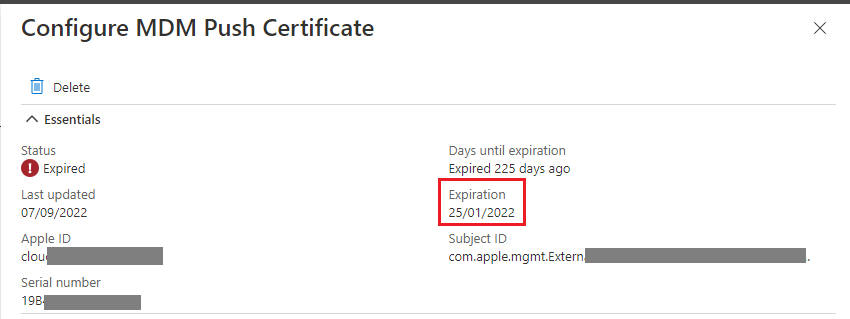
  • Checking if the APN certificate is expired
  • How to Renew an APN certificate in Microsoft Intune

Note: This post assumes that you already have Intune configured with an Apple Push Notification certificate and are managing Apple devices via Intune MDM.

What is an APN certificate used for?

An Apple Push Notification certificate is issued by Apple and is used by a Mobile Device Management system to authenticate itself to the Apple devices that it manages. In the case of Microsoft Intune, it sends the APN certificate to the Apple device and the Apple device, such as an iPhone, validates the certificate before accepting management messages from Intune.

Key points of APNC management in Intune

  1. If the APN certificate expires and the grace period of 30 days passes then ALL of the Apple devices managed by Intune MDM will stop accepting management tasks from Intune. If this happens then all devices will need to be re-enrolled in Intune. This is a difficult task for a large organisation!
  2. When an APN certificate is due to expire you must always renew the certificate and not create a new one. Using a brand new certificate will break the trust between your existing Apple devices and Intune. If you accidentally do this, you can revisit the Apple portal and renew the expiring certificate. Loading that in to Intune should restore service for the existing Apple devices.
  3. Your APN certificate is tied to the Apple ID that was used to create it. If you do not have access to this Apple ID (such as it was created in the name of a former employee) then start taking steps now to gain access! One workaround is to contact Apple Developer Program Support with the certificate details and they will be able to migrate the certificate to another Apple ID.
  4. Once a renewed APN certificate is loaded in to Intune, all Apple devices will seamlessly transition to accepting the new certificate. There are no device side changes required

Where to find your APN certificate expiry date

It is extremely important to be aware of when your APN certificate is due to expire for the reasons mentioned above.

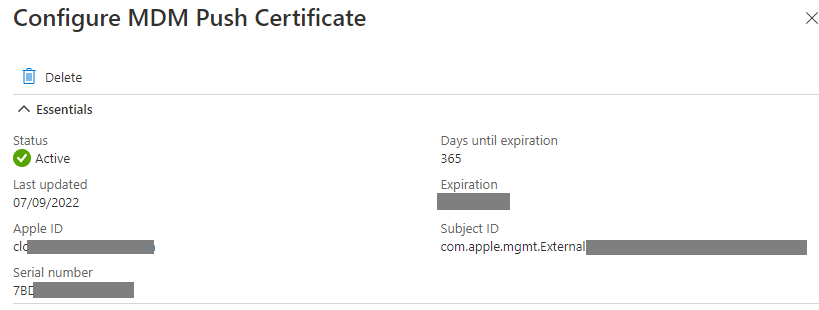
  1. In the Endpoint Manager portal https://aka.ms/dmac > Devices > Enroll devices > Apple enrollment > Apple MDM Push certificate
  2. On this page you will see which Apple ID the created the certificate as well as the expiry date.

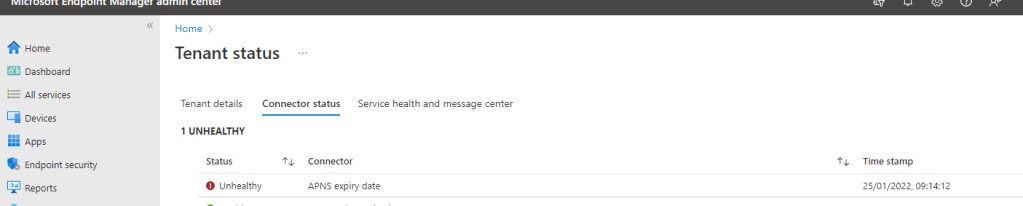
If your APN certificate has already expired then you will see the following alert on the Home > Connector status tab of the Endpoint Manager portal as seen below:

How to renew an APN certificate in Microsoft Intune

  1. In the Endpoint Manager portal https://aka.ms/dmac > Devices > Enroll devices > Apple enrollment > Apple MDM Push certificate.
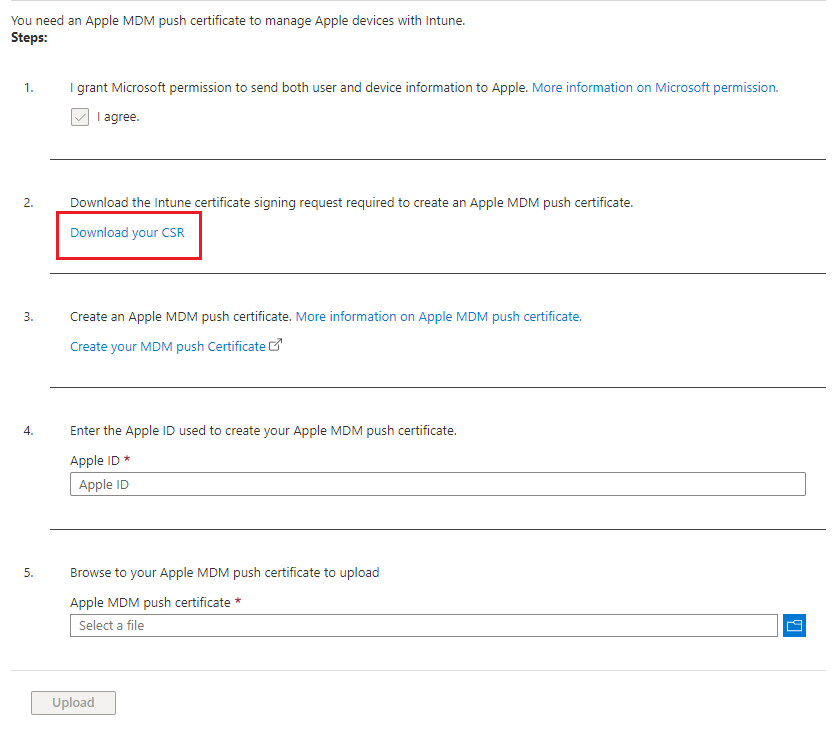
  2. The lower section of the page allows you to renew your certificate. Select Download your CSR.
  3. A file called IntuneCSR.csr will be downloaded.
  1. Select Create your MDM push Certificate > Login to the Apple portal that opens with the same Apple ID as was used to create the soon to expire APN certificate.
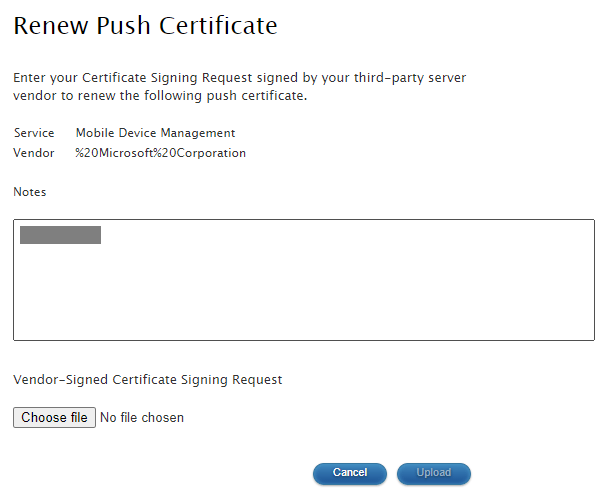
  2. Select Renew next to the certificate. DO NOT select Create new certificate!
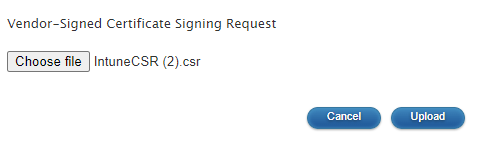
  1. Select Choose file > upload the IntuneCSR.csr file > select Upload
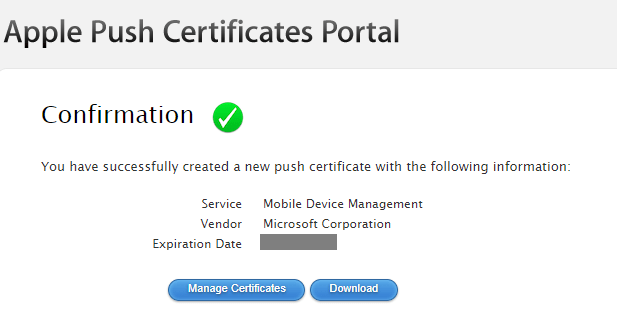
  1. Select Download to download the new certificate.
  2. A file called MDM_Microsoft_Corporation_Certificate.pem will be downloaded.
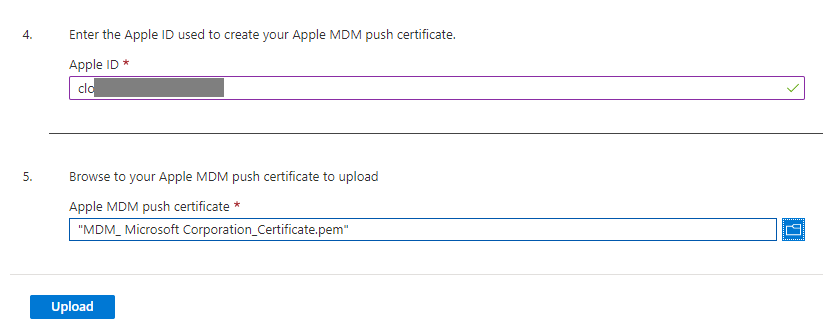
  3. Back on the Intune portal, enter the Apple ID used to create the Apple certificate > Upload the .pem file.
  1. Once Intune validates the certificate it will show as Active with a green tick at the top of the page. There are no devices side actions required.

Summary

The Apple Push Notification certificate enhances the security of Intune MDM. Maintaining it is often overlooked because it is easy to set up and normally created as part wider project to migrate to Intune with many moving parts.

It is essential however to stay ahead of expiry and failing to do so can have a huge impact on device management. It should be treated like any other certificate maintenance plan. Key tasks are:

  • The Apple ID credentials are recorded and stored securely.
  • The expiration date is entered in to a calendar that can alert IT staff.
  • The steps to renew the certificate are recorded in a knowledgebase.

Intune Windows 10 Autopilot deployment profile MENU BUG – Don’t be caught out!

Microsoft recently released two hotly anticipated Intune Preview features:

  • Self-Deploying Autopilot – Azure AD Joined
  • User-Driven Autopilot – Hybrid Azure AD Joined

Naturally Microsoft has added logic to the menu selections in the Autopilot Deployment Profiles that greys out incompatible menu options. I have found and reported to Microsoft a bug that allows you to select incompatible options. Doing so causes you Autopilots to fail.

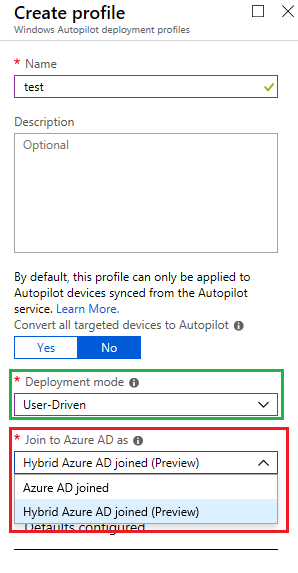
Creating a new policy and selecting Deployment mode: User-Driven Autopilot – gives you two options:

  • Azure AD Join
  • Hybrid Azure AD Joined (Preview)

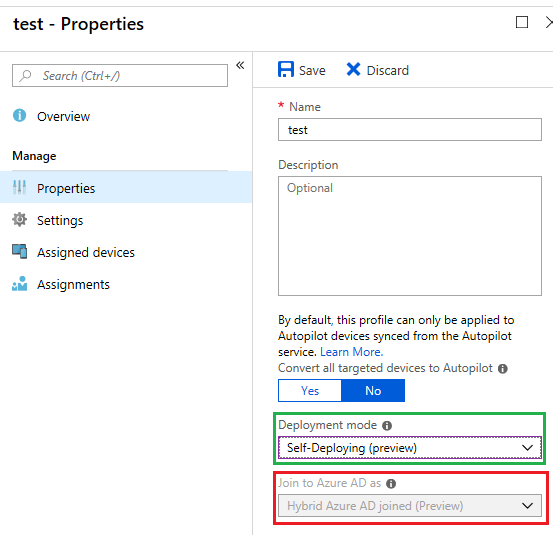
Selecting Self-Deploying (Preview) locks the ‘Join to Azure AD as’ drop down menu on to Azure AD Joined. This is desired because Hybrid Azure AD Join is not available for Self-Deploying mode (yet).

Now the bug…

  1. Save a policy with the User-Driven – Hybrid Azure AD Joined options selected.
  2. Go back in to the policy and select Properties.
  3. Change the Deployment Mode to “Self-Deploying”.
  4. Note that the ‘Join to Azure AD as’ drop down stays greyed out on the invalid option ‘Hybrid Azure AD Joined’ .

The impact…

This is not just cosmetic. By doing this the Autopilot device will fail on the Enrolment Status Page (ESP) with the error: 0x801c03ed.

Windows 10 AutoPilot Error 80004005

Update 7th Feb 2023 - This post was written for an earlier version of Autopilot. The solution in this post does not apply to any versions of Windows 10 that are currently in support.

During Windows AutoPilot in User Driven mode you may see the following error on the Network tab (after Windows has downloaded the AutoPilot profile but before the reboot). It takes about 10-20 minutes for this error to display.

Something went wrong.
Confirm that you are using the correct sign-in information and that your 
organisation uses this feature. You can try to do this again or contact 
your system administrator with the error code 80004005
36,35,305,312.797363

Check that the device has a clear line of sight to to a Domain Controller. This is a requirement of User-Driven Autopilot.