Block or Monitor Sensitive Data Access by a Local AI Model using Purview Endpoint DLP

As AI tools become more prevalent on endpoints, how do we ensure they don’t get their virtual hands on sensitive files? In this blog post, I’ll walk through a hands-on lab using Microsoft Purview Endpoint DLP to block a Foundry Local AI model from accessing a classified document on a Windows 11 device. I also discuss options for deploying the themes covered in production.

Scenario: We have a document that we know contains sensitive data on a Windows 11 device, labelled as Confidential. We have another document on the same device that contains sensitive data and is not labelled. We’re going to use Microsoft Foundry Local (a CLI tool for running AI models locally) to attempt to process that file. With the right Restricted App policy in Purview, the AI model’s process will be blocked from opening the file. The policy settings can also be set to only Audit so that Endpoint DLP monitors the sensitive data usage.

We’ll set up everything from scratch: enabling Endpoint DLP, tagging a file as sensitive, adding Foundry CLI as a restricted app, creating the DLP policy, and then testing the block while capturing logs and evidence. Below is a 2 minute video showing what the user experience is like:

Let’s get started!


Pre-requisites

Licensing:

  • Microsoft 365 E5 or E5 Compliance license (for Endpoint DLP).
  • Audit enabled in Microsoft Purview (usually on by default in E5 tenants).

Device:

  • Device running Windows 11 Pro, Enterprise or Education

User Rights:

  • Local administrator rights on the device (to run onboarding scripts and install Foundry CLI).
  • Purview DLP admin permissions in the tenant (to configure DLP policies and restricted apps).

Step 1: Onboard Your Windows 11 Device to Purview Endpoint DLP

First things first – your endpoint (the Windows 11 PC) needs to be known to Microsoft Purview’s DLP service. This is done by onboarding the device to Microsoft Defender for Endpoint, which in turn lights up Purview Endpoint DLP capabilities. If you’ve already got the device in Defender for Endpoint, you’re likely set. If not, here’s how:

  • Generate an onboarding package: In the Purview portal (purview.microsoft.com), go to Settings > Device onboarding > Onboarding. Choose Windows 10/11 and download the onboarding script or the MSI package. (For Intune-managed environments, you can download an onboarding policy for MEM.)
  • Run the onboarding script: Copy the script to the Windows 11 PC (or use Intune to deploy). Run it as administrator. It will configure the device and register it with your tenant’s Defender for Endpoint. A reboot might be required.
  • Verify onboarding: After a few minutes, check the Devices list in the In the Purview portal, go to Settings > Device onboarding > Devices. You should see your device listed as onboarded. You can also run sc query sense in an elevated command prompt on the PC to see if the Defender for Endpoint sensor (“Sense” service) is running – a good sign.
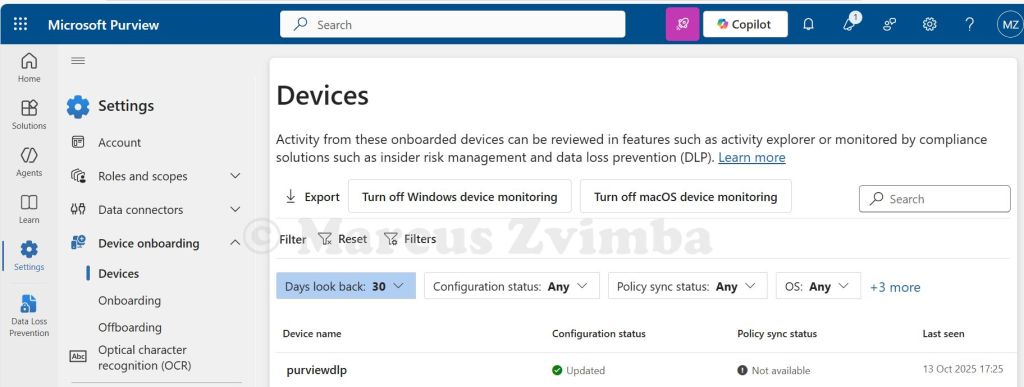
If the device shows up and is active, congrats – you now have an endpoint that Purview can protect with DLP policies. (“Enrolment” complete! ✓)

Note: Ensure the Windows user you’ll test with has an E5 Compliance licence assigned (since Endpoint DLP is an E5 feature). Also, enabling Auditing in Purview (via purview.microsoft.com > Solutions > Audit) is required so that all actions get logged. In an E5 tenant, audit is typically on by default.

Step 2: Prepare a Sensitive File to Protect

We need a file that our DLP policy will treat as sensitive. This could be any document containing confidential info or explicitly labelled as such:

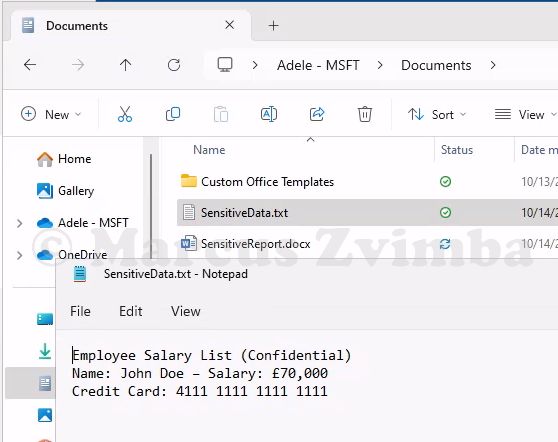
  • Create a test file: For example, I opened Notepad and entered some dummy personal data:
Employee Salary List (Confidential)

Name: John Doe – Salary: £70,000

Credit Card: 4111 1111 1111 1111

Save this as SensitiveData.txt on the device. The credit card number will trigger built-in DLP detectors.
  • Create a second test file and apply a sensitivity label: Copy the text into a Word document but remove the credit card number. If you have sensitivity labels published (like “Confidential” or “Highly Confidential”) we can use these, otherwise you will need to publish a new Purview Information Protection sensitivity label. I saved a copy as SensitiveReport.docx and applied my “Confidential” label.
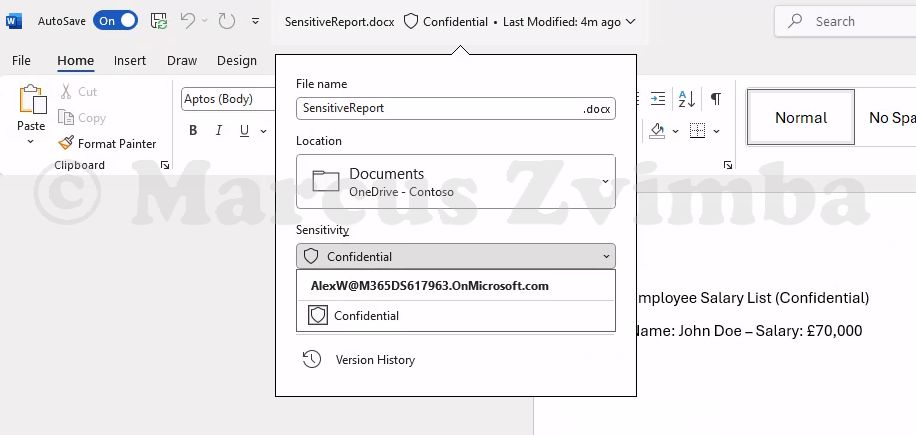
Now we have two files that are definitely sensitive. Purview can identify them either via the sensitivity label metadata or by scanning the content (e.g. detecting that 16-digit number as a credit card number).

Step 3: Mark Foundry Local CLI as a Restricted App

This is the pivotal configuration: telling Purview that the Foundry Local CLI is not allowed to touch protected content. Foundry Local is invoked via the foundry command. Under the hood, that’s an executable (on Windows it is foundry.exe). We’ll add that to the restricted apps list:

  • In the Purview portal, go to Settings > Data Loss Prevention > Endpoint DLP Settings > Expand Restricted apps and app groups.

Click Add an app:

  • App name: Give a friendly name like “Foundry Local CLI”.
  • Windows executable name: This must match the process name. In this case, type foundry.exe (the CLI later installed via winget uses this command). No need for a path, just the exe name.
  • (No need to fill Mac info for our Windows scenario.)
  • Auto-quarantine: Leave this unticked. (Auto-quarantine is more for things like Dropbox apps – not needed here, we just want to block.)

Hit Save. You should now see “Foundry Local CLI (foundry.exe)” in the Restricted apps list.
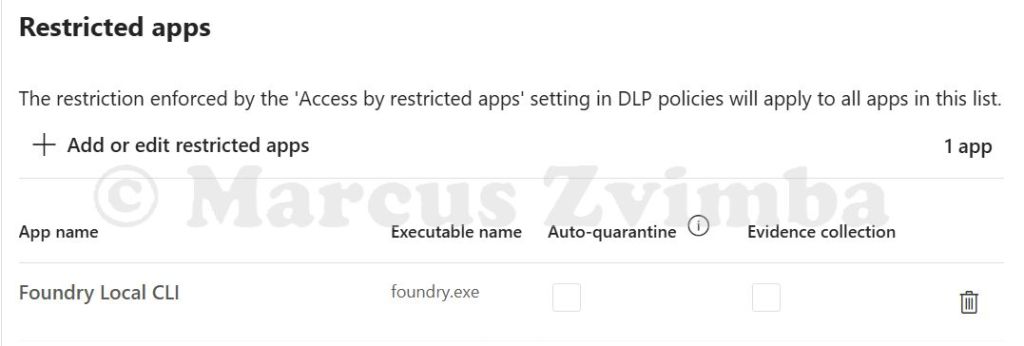
Ensure the entry is there. The default behaviour for restricted apps (unless overridden by policy) is to audit. We will enforce the block via policy next. The settings page will look like this:

Now Purview knows about the Foundry CLI. Next, we’ll configure the actual DLP policy rule that leverages this.

Step 4: Create a DLP Policy to Block Restricted App Access

We’ll create a custom DLP policy that targets our sensitive info and blocks any restricted app (like foundry.exe) from accessing it. Here’s how:

  • In the Purview portal, go to Data Loss Prevention > Policies > Create Policy > Data stored in connected sources.
  • Choose Custom policy. Name it something like “Block Sensitive Data to Foundry Local AI”.
  • On Assign admin units select Next.
  • On Locations: Tick Devices (we want this on endpoints), and untick all the other options.
  • To the right of the ticked Devices > Edit the scope, IMPORTANT: Only apply this to your test groups
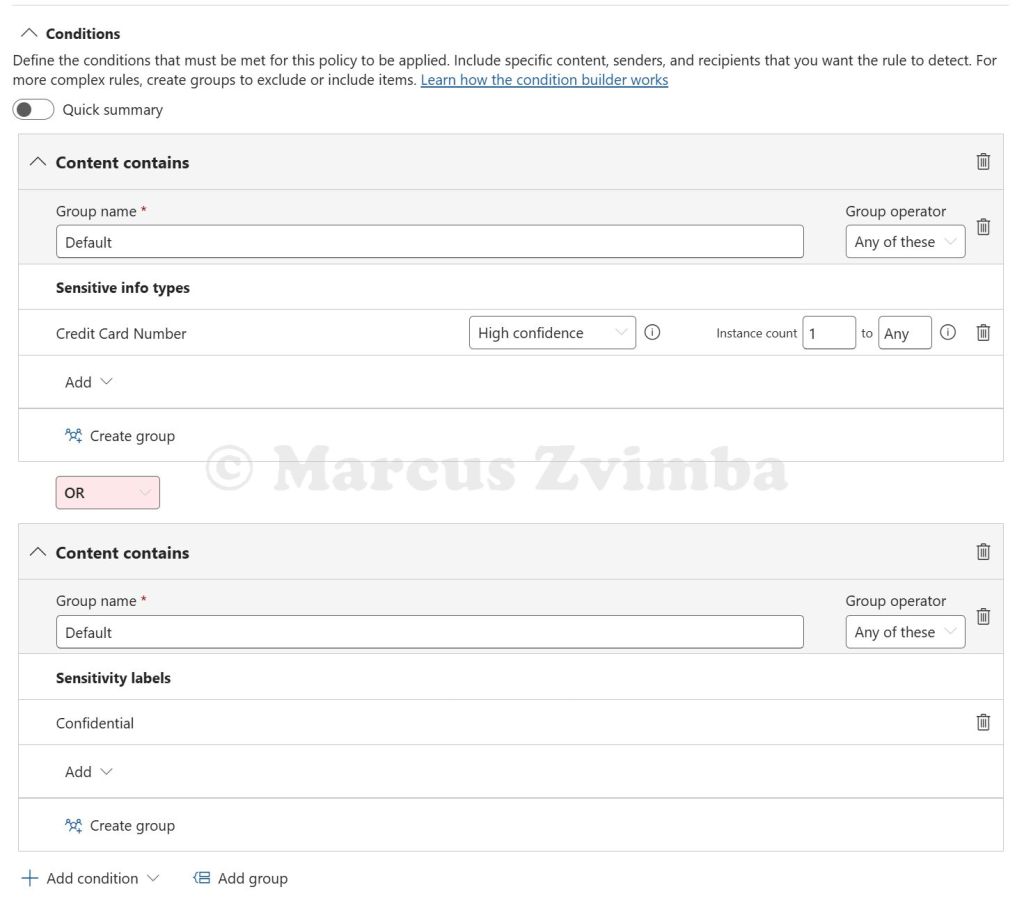
  • Name the rule “Sensitive content” and add conditions.:
    • Click Add condition > Sensitive info types. Pick “Credit Card Number” and set it to at least 1 instance. (Our file has one, so that’ll hit.) You could also add “UK National Insurance Number” or whatever fits your content. Each added type is an OR by default (any one matching triggers the rule).
    • Additionally, add Sensitivity label as a condition. Select the label Confidential. Now the rule will trigger if the file has that label OR matches an SIT. You can have multiple conditions; by default it’s “Any condition matches”.
    • Tip: If using multiple, ensure to group accordingly if needed. In our case, Credit Card OR Confidential label is fine.
  • Scroll to Actions > Select Audit or restrict activities on devices.
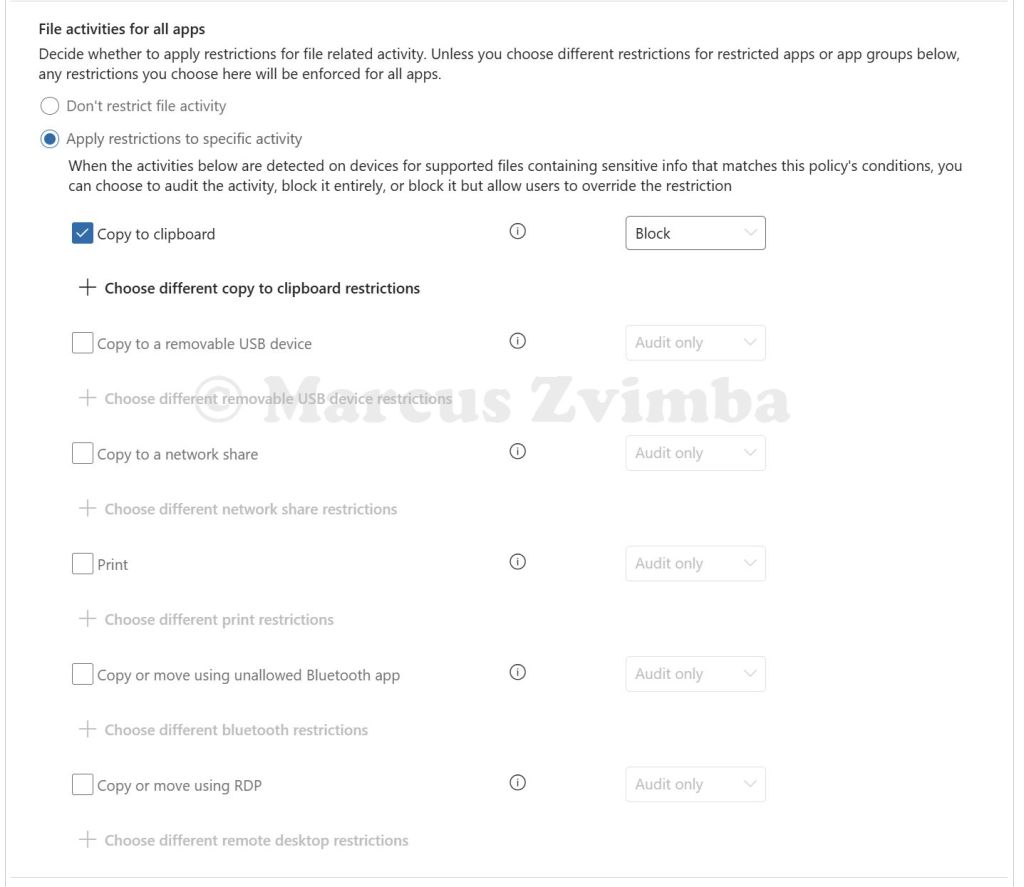
  • set File activities for all apps to Apply restrictions to a specific activity
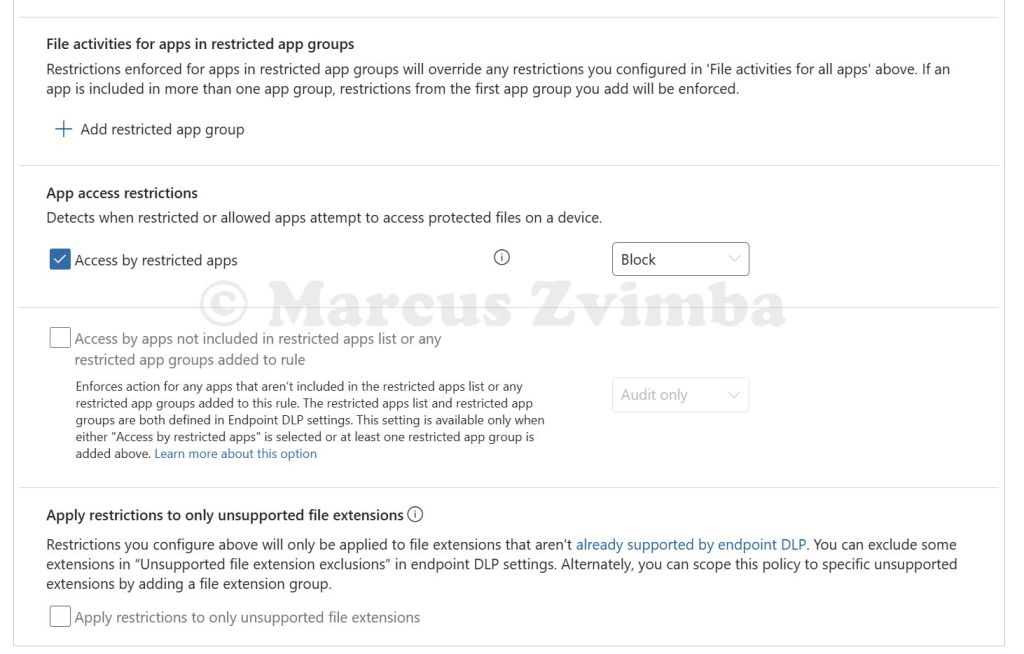
  • Select Copy to clipboard > Block. Untick all the other options. I’ll explain why we need this later in the post.
  • Under App access restrictions > Tick Access by restricted apps > Select Block. This corresponds to any app we put in the restricted list trying to open the file.
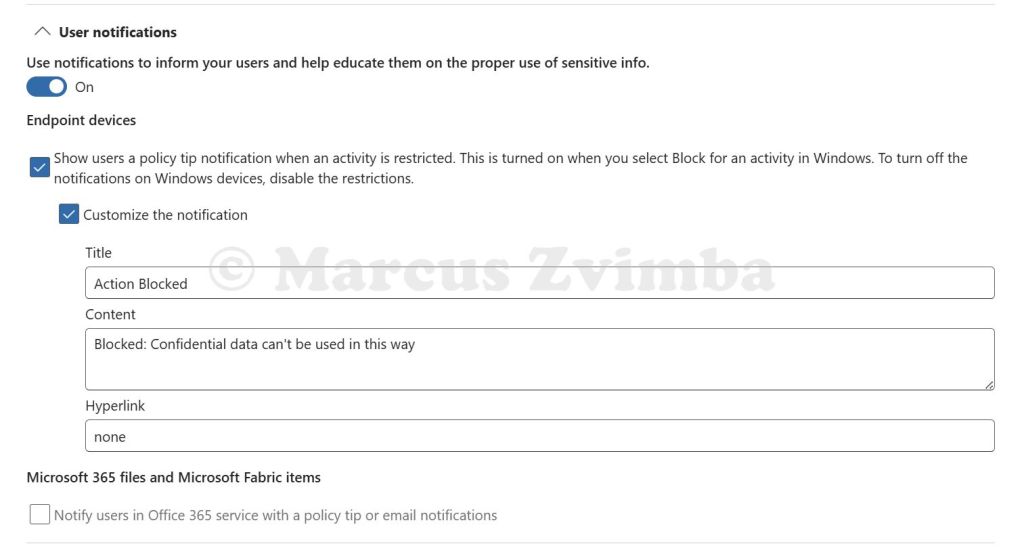
  • Toggle “User notificationson for endpoint. This ensures the user sees a popup when the policy triggers. You can customise the message if you like (“Blocked: confidential data can’t be used with this app”) but it’s optional.
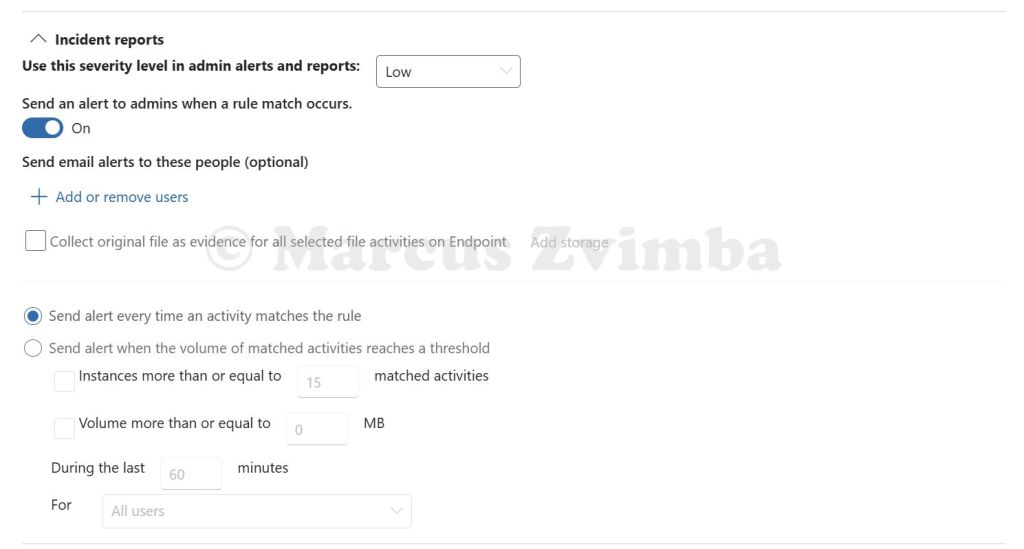
  • For the lab, I toggled on Alerting for this rule. This way, when it triggers, an alert is generated in Purview (useful to demonstrate logging). Set it to alert every time or just the first time – up to you.
  • Choose Turn the policy on immediately (not simulation mode) since we want the block to actually happen now. Click Submit and let it publish.
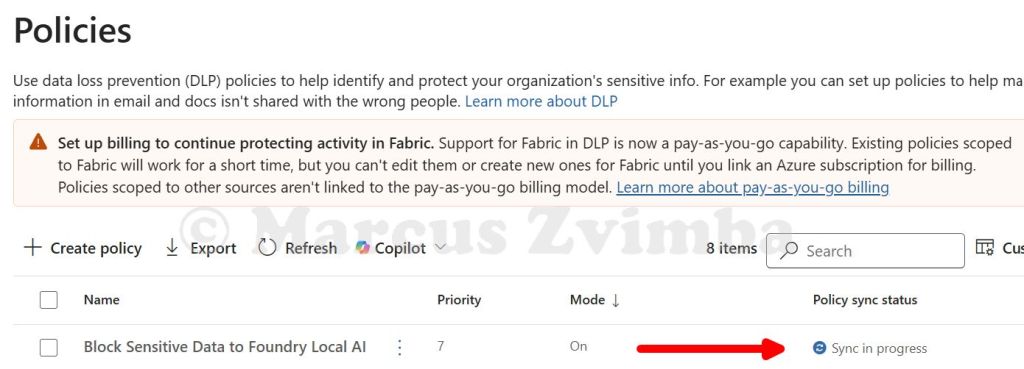
It can take a long time for policy changes to take effect, anywhere from 1 to 24 hours. The DLP agent on the device will download the new policy in the background. So, time for a break!
Step 5: Run Foundry Local CLI and Attempt to Access the File

Time for the fun part – will our AI model be thwarted by DLP? Let’s simulate a user (us) trying to feed the sensitive file into the local AI model:

  • Install Foundry Local on the Windows device by running the below command
winget install Microsoft.FoundryLocal
  • Open Command Prompt (as the regular user, not admin). Start a model by running a command:
foundry model run phi-4-mini

This tells Foundry Local to run a small instruction-following model (phi-4-mini). It will download the model if not already cached, then start an interactive session

You’ll see some logs of model loading, then a prompt like Foundry > indicating it’s ready for input.
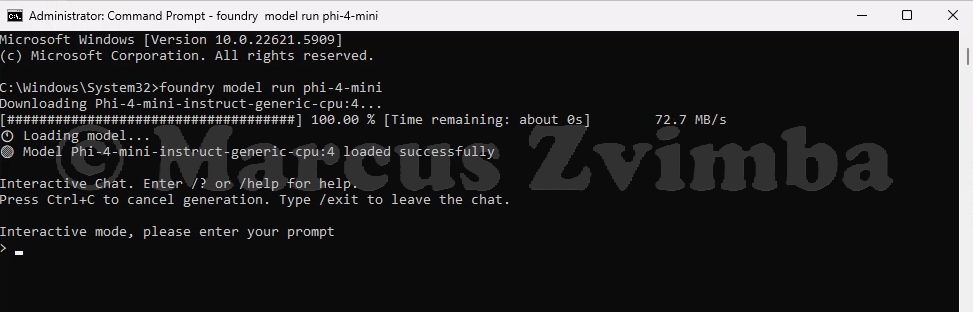
Press Ctrl + C to exit the foundry prompt

Now we will test our DLP policy:

  • Test A: Redirect the unlabelled file into Foundry: Type the command (replacing the file location with your file’s location):
foundry model run phi-4-mini < "C:\Users\AlexWilber\OneDrive - Contoso\Documents\SensitiveData.txt"

This uses shell redirection to pass the file content as input to the model.

  • Result – Blocked! The command line reported that Access to the file is blocked. I immediately got a Windows notification in the bottom-right: “Blocked: Confidential data can’t be used in this way”. Bingo! The foundry.exe process was prevented from reading SensitiveData.txt.
  • In the Purview portal > Solutions > Data Loss Prevention > Explorers > Activity Explorer > Search for an activity called ‘DLP rule matched‘. Open the match for your device and the file you tried to access. Below are the details for this blocked action

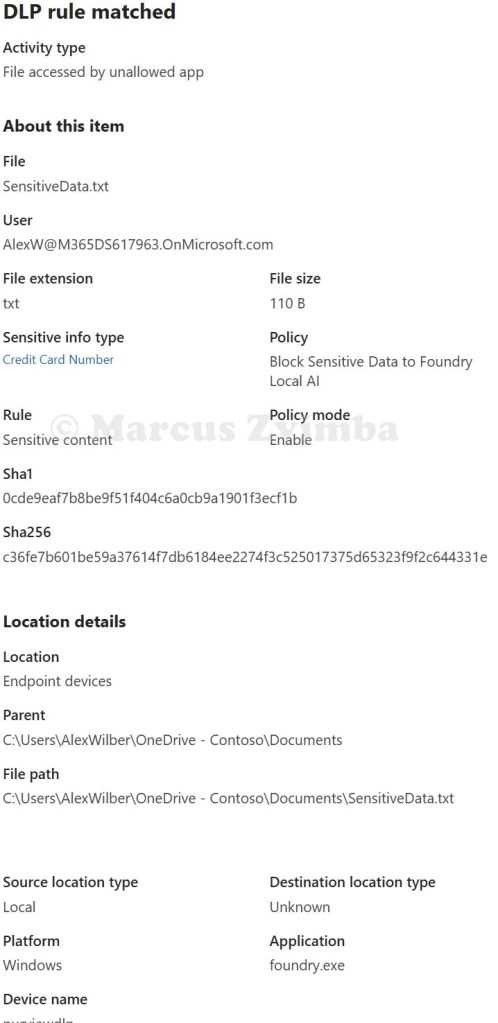
Test B: Redirect the labelled file into Foundry: Type the command (replacing the file location with your file’s location):

foundry model run phi-4-mini < "C:\Users\AlexWilber\OneDrive - Contoso\Documents\SensitiveReport.docx"

This uses shell redirection to pass the file content as input to the model.

  • Result – Blocked!  The command line reported that Access to the file is blocked I immediately got a Windows notification in the bottom-right: “Blocked: Confidential data can’t be used in this way”. The foundry.exe process was prevented from reading SensitiveReport.docx.
  • In the Purview portal > Solutions > Data Loss Prevention > Explorers > Activity Explorer > Search for an activity called ‘DLP rule matched‘. Open the match for your device and the file you tried to access. Below are the details for this blocked action

Test C: Copy/Paste: We know that foundry.exe cannot read the files directly. But what if your user wanted to copy and paste the sensitive content in to the AI model’s prompt? To prevent this we have used a sledgehammer. Due to a limitation of Purview Endpoint DLP, there is no Purview option to Block pasting data into foundry.exe when it is accessed via the command line. We must block the data being copied into the clipboard in the first place.

Suppose we had a local application that uses a local AI model under the hood, like a chat bot. That app is accessed via a web front end using Edge browser. We could set our DLP policy to block 'Paste to supported browsers' so that we don't have to completely block the ability to Copy the data to the clipboard.

Remember in our DLP policy we blocked Copy for all apps? Well, this is the sledgehammer! No application on this device will be able to copy our sensitive data in to the clipboard (the Credit card number from the unlabelled text file or data from the labelled Word document).

To test this, we open SenstiveData.txt and try to copy the Credit Card number. It is blocked.

We try the same with any data in SenstiveReport.docx and it is also blocked.
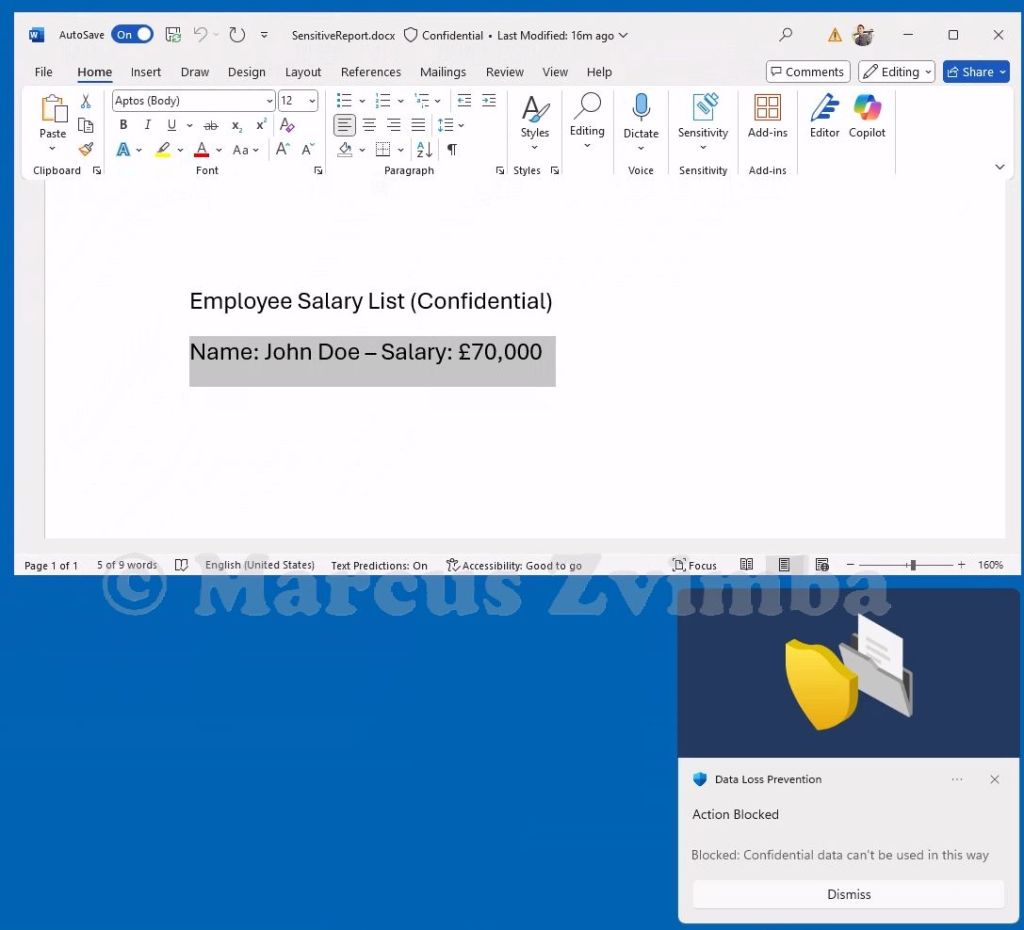
This is indeed a sledgehammer as it impacts how the user can work with data that they may have a legitimate need to copy and paste into different applications. Instead, you could use a Block with override policy setting that allows the user to proceed with the Copy after they have been warned not to use it with the local AI model.

Lastly, go to Purview portal > Solutions > Data Loss Prevention > Alerts. Here we see the Low priority alerts we configured to trigger in the DLP policy.
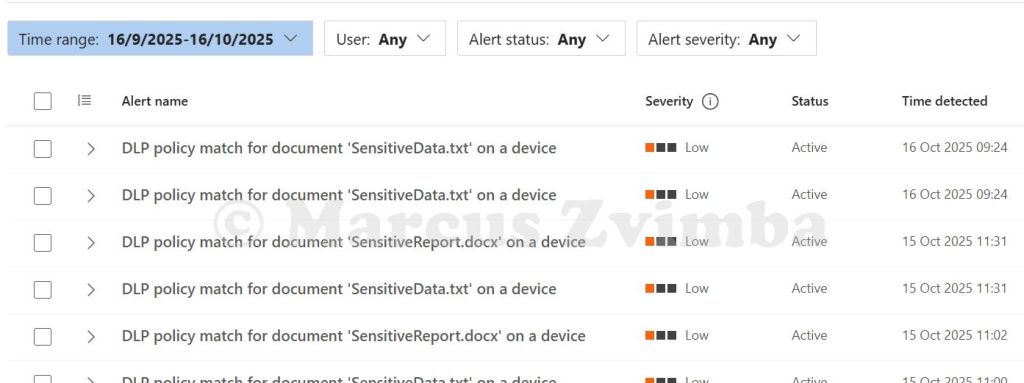

Additional Notes and Observations

  • Foundry Local CLI specifics: Currently, Foundry’s model run command doesn’t have a built-in “open file” parameter (it’s geared for interactive chat2). We simulated file input via shell redirection.
  • Scope of policy: We applied the policy to all devices/users for simplicity. In production, you could scope it to specific users or device groups. For instance, maybe only apply to users in a particular department initially, or exclude certain test machines.
  • Audit vs Block: We went straight to blocking to demonstrate the feature. A best practice is to start with Audit mode to see how often an event would trigger. If you had run our policy in Audit, then Foundry would have received the data but the event would still be logged as “Access by restricted app (Audit)”. After confidence, you flip to Block. For a lab/demo, Block is more dramatic to show 😃.
  • Limitations: This solution prevents direct file access or copying. It doesn’t cover a scenario where a user might manually re-type info or if they took a screenshot and fed that to an AI (that’s a different vector – though Purview can also block screen captures of labelled content if you disable the Copy permissions in Access Controls in the sensitivity label).
    The policy does not differentiate which model is running – it blocks the Foundry CLI entirely from those files. In some orgs, you might eventually allow certain vetted models but not others; currently, the control is at the app level rather than model granularity.

Conclusion

We successfully showed that Microsoft Purview Endpoint DLP can safeguard sensitive files from being processed by a local AI model. By configuring foundry.exe as a restricted app and creating a DLP policy to block its access to classified data, the system prevented the data from ever leaving its file – the AI got nothing.

This lab mirrors real-world concerns: employees might be tempted to use powerful local AI tools (like Foundry, chat bot clients, etc.) with work data. With proper DLP controls, you can permit the benefits of AI while mitigating the risks of unauthorised use of AI with sensitive information.

If blocking is not your priority but monitoring is, then you can leverage Endpoint DLP in Audit mode which feeds alerts to the Purview portal. Then use Purview Insider Risk Management policies to detect risky behaviour, such as an application that uses local AI opening many documents that contain sensitive information when that is not normal for how the AI model was intended to be used.

Happy labbing, and stay secure while you innovate!

Windows 11 Snap Layouts – Multitasking Tool Overview

💡 Many organisations are completing their Windows 11 rollouts, and the improved Snap layouts feature is one I see underused for multitasking. Despite being around since Windows 10, I encounter many people who are unfamiliar with it.
I’ve made a short video showing how Snap layouts work and why they’re a highlight for anyone juggling multiple apps. If you’re new to Windows 11 or just want to get more organised, this is worth a look.

Let me know if you’ve found other Windows 11 features that help you work smarter.

M365 Copilot & Your Data: 4 Common Misconceptions

Since Microsoft 365 Copilot landed, I’ve had many conversations with businesses who are anywhere from just starting on their journey with it to being advanced users. I have listed here some common misconceptions I hear about data and M365 Copilot. Most of them boil down to one thing, misunderstanding what Copilot actually is and how it works under the bonnet.

In this post I talk about the paid license M365 Copilot that is typically used by businesses, not the free, personal Microsoft Copilot.

So let’s clear the air. Here are four common misconceptions I’ve heard, and the real story behind each one.


Misconception 1: “When I buy Copilot, I get my own private AI model”

Nope, that’s not how it works.

When you license Copilot, you’re not spinning up your own personal GPT instance tucked away in a private server. What you’re actually getting is secure access to a shared large language model hosted in Microsoft’s cloud. Think of it like renting a lane on a motorway, you’re using the same infrastructure as everyone else, but your data stays in your own vehicle.

Microsoft’s architecture is designed to keep your data isolated. Your prompts and context are processed securely, and your content is never used to train the model. So while the model is shared, your data isn’t.


Misconception 2: “My data never leaves my tenant”

This one’s a bit trickier. Your data does reside in your tenant, but when you use Copilot, the relevant bits of it are sent to Microsoft’s cloud-based AI models for processing.

That means your prompt and the context Copilot gathers, emails, files, chats and so on, are securely transmitted to the nearest available AI compute cluster. If that cluster’s busy, your data might be routed to another Microsoft datacentre, possibly in another country. But if you’re in the EU, Microsoft guarantees that your data won’t leave the EU boundary.

So yes, your data leaves your tenant, but it stays within Microsoft’s secure cloud, and within the rules.


Misconception 3: “Copilot can access all ‘Anyone’ share links in my organisation”

Not quite.

An ‘Anyone’ link, the kind that lets anyone with the link view a file, doesn’t automatically make that file searchable. For Copilot to surface content from an ‘Anyone’ link, the user must have redeemed the link, meaning they’ve clicked it and accessed the file.

Until that happens, Copilot treats the file as off-limits. It operates strictly within the context of the user’s permissions. So if you haven’t clicked the link, Copilot won’t see it, even if the link exists somewhere in your tenant.

Also worth noting, ‘Anyone’ links are risky. They’re essentially unauthenticated access tokens. Anyone can forward them, and there’s no audit trail. Use them sparingly.


Misconception 4: “Copilot only sees my data if I attach it to the prompt”

Wrong again.

Copilot doesn’t wait for you to upload a document or paste in a paragraph. It automatically pulls in any content you already have access to, emails, OneDrive files, SharePoint docs, Teams chats, calendar entries, the lot.

This is called grounding. When you ask Copilot a question, it searches your Microsoft 365 environment for relevant context, then sends that along with your prompt to the AI model. If you’ve got access to a file that answers your question, Copilot will find it, no need to attach anything manually.

That’s why data access controls are so important. If a user has access to sensitive content, Copilot can use that content in its responses. It won’t override permissions, but it will amplify whatever the user can already see.


Final Thoughts

M365 Copilot is powerful, but it’s not magic. It works within the boundaries of Microsoft 365’s architecture, permissions and security model. Understanding those boundaries is key to using it safely and effectively.

If you’re rolling out Copilot in your organisation, make sure your users understand what it can and can’t do and make sure you know how to protect your data.


Further Reading

How to Disable Windows Copilot using Intune or Group Policy

In this post I will explain how to use Microsoft Intune or Active Directory Group Policy to disable Windows Copilot for one or more users.

Introduction

On 26th September 2023, Microsoft released optional update KB5030310, one of the most ground breaking updates to Windows in recent times. With it comes Windows Copilot, which for millions of users worldwide will serve as an introduction to using an AI powered chat interface to enhance their day to day productivity.

Many organisations are still adjusting to the march to an AI enabled workplace and so need some time to test and understand before unleashing it for their workforce.

Disable with Intune

Edit: 23/10/2024 - in May 2024 Microsoft have deprecated the TurnoffWindowsCopilot policy CSP that is referenced in the steps below. This means the Intune steps in this post will not work. See Microsoft's post on the subject:  https://techcommunity.microsoft.com/t5/windows-it-pro-blog/evolving-copilot-in-windows-for-your-workforce/ba-p/4141999

A recent addition to the Policy CSP is the TurnOffWindowsCopilot setting, documented here. At the time of publishing this post there is no built-in setting in Intune to manage Windows Copilot. So we will create a custom OMA-URI policy:

  • In Intune, select Devices > Windows > Configuration Profiles > Create profile.
  • Under Platform select Windows 10 and later.
  • Under Profile type select Templates.
  • Under Template Name select Custom > select Create.
  • Name the profile something meaningful.
  • Under Configuration Settings select Add.
  • Set the name to something meaningful.
  • Under OMA-URI enter the below text:
./User/Vendor/MSFT/Policy/Config/WindowsAI/TurnOffWindowsCopilot
  • Set Data type to Integer.
  • Set the Value to 1 (setting it to 0 will enable Windows Copilot which is the default setting).
  • Save the policy and assign it to a security group containing users for whom you wish to disable Windows Copilot.
  • No reboot is required. When the user next signs in, the Windows Copilot icon in the taskbar will have been removed.
The Administrative Template that is used in the Group Policy version below cannot be imported in to Intune as a Custom Administrative Template. When you come to apply it to a device it will fail because it tries to modify a protected part of the registry.

Disable with Group Policy

Pre-Requisites

  • Obtain the WindowsCopilot.admx and WindowsCopilot.adml files from the C:\Windows\PolicyDefinitions file of a Windows 11 device that has the KB5030310 installed on it.
    • When Windows 11 23H2 is released it will include the same files.
    • Alternatively, you can download the files from my Github here.

Implement Group Policy

  • Import the WindowsCopilot.admx file to the PolicyDefinitions folder in your domain. This will either be C:\Windows\PolicyDefinitions on your Domain Controllers or if you have a central store configured (which you should do), it will be in a location like:
\\contoso.com\SYSVOL\contoso.com\policies\PolicyDefinitions
  • Import the WindowsCopilot.adml file to the PolicyDefinitions\en-US folder.
  • On a Domain Controller or from a device with the AD DS management tools installed, open Group Policy Management console.
  • Create a new Group Policy Object and name it something meaningful.
  • Edit the GPO, expand User Configuration > Administrative Templates > Windows Components > Windows Copilot
  • Open the setting Turn off Windows Copilot.
  • Set it to Enabled.
  • Select OK. The policy will now look like this:
  • Link the GPO to an Organisational Unit that contains users for whom you wish to disable Windows Copilot.
  • No reboot is required. When the user next signs in, the Windows Copilot icon in the taskbar will have been removed.

Summary

Windows Copilot provides an opportunity for users to begin experimenting with a new way to command their computers. In a production environment, it is important to use deployment rings such as Test, Pilot and Broad to prepare for and understand the impact of any change to the environment. An ability to roll back for individual users is most welcome. Fortunately, Microsoft have made it easy to switch Windows Copilot on and off on a targeted basis.

Preparing for Microsoft Copilot

💡 What are some of the things you can do NOW to start preparing for Microsoft Copilot in your organisation?

✅ Understand that there is technical readiness and people readiness. Both need attention to maximise return on investment.

✅ Familiarise yourself with Copilot and its role in the world of generative AI https://www.microsoft.com/en-us/ai.

✅ Engage your Ethics, Legal, and Inclusion champions early on to address the implications of generative AI.

✅ Incorporate the six Microsoft principles in AI into your company’s AI usage policy https://www.microsoft.com/en-us/ai/responsible-ai.

✅ Take your first step into the Copilot world with Bing Chat Enterprise https://www.microsoft.com/en-us/bing/chat/enterprise/?form=MA13FV, an AI-powered chat platform included with common M365 licences

✅ Prioritise data security by reviewing identity and access policies, using data labelling for sensitive documents, and ensuring awareness of file sharing risks. Do your device management policies need a health check?

✅ Identify areas where you may need external assistance and initiate conversations with technology partners.

🚀 Implementing generative AI into a business is a marathon, not a sprint. Set those expectations now. There are quick wins out there to get hands on with the technology while you get Org ready.  Windows Copilot in Windows 11 is one of them Hands on with Windows Copilot.

Hands on with Windows Copilot

In this post, I explain my first impressions of Windows Copilot along with some tips for getting started with it.

Introduction

On 26th September 2023, Microsoft released optional update KB5030310, one of the most ground breaking updates to Windows in recent times. With it comes Windows Copilot, which for millions of users worldwide will serve as an introduction to using an AI powered chat interface to enhance their day to day productivity.

Installing Windows Copilot Preview

Check out my guide for installing the Windows Copilot Preview.

Accessing Windows Copilot

Once installed, the Windows Copilot Preview icon appears in the taskbar.

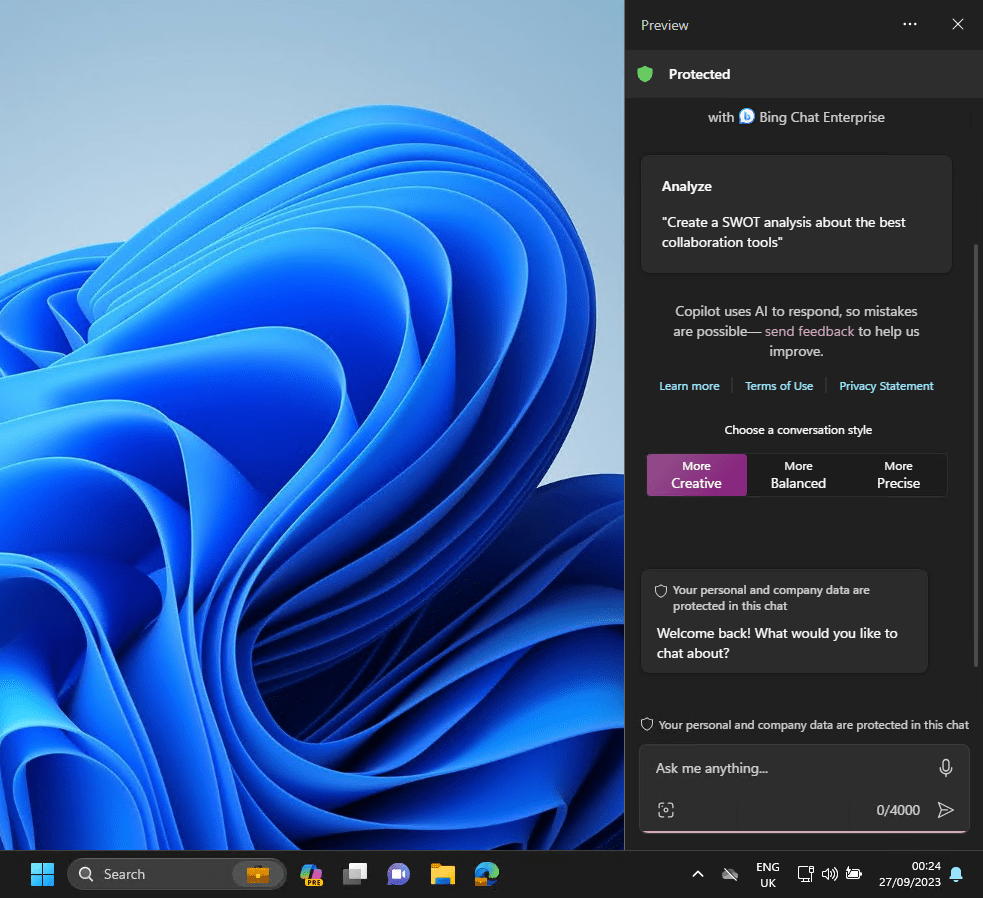
Clicking the Copilot icon opens the full vertical length chat interface.

The screenshot above was taken while logged in on an Azure AD joined device that had Bing Chat Enterprise enabled. This is what the Protected green shield at the top signifies. 

Changing Device Settings

Frist things first. Settings in Windows are buried all over the place. Copilot helps by you simply telling it what you want to do. Copilot will respond with a question with Yes and No thanks buttons. In the video below, I ask it to set Windows to the light theme.

Compound Task

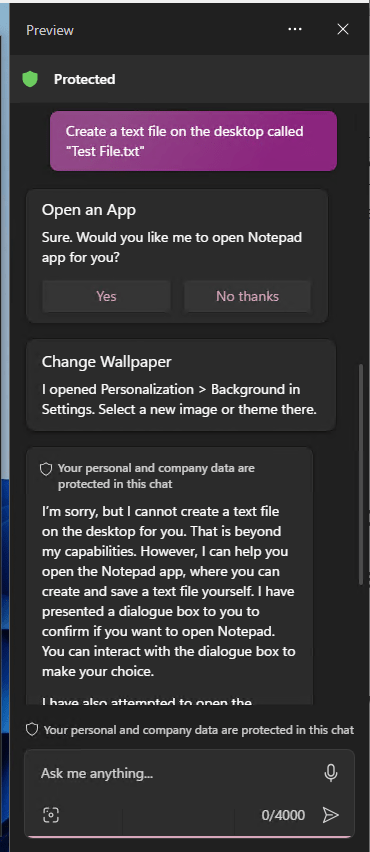
Trying something more advanced, I asked it to create a text file on the desktop. It offered to open Notepad for me and apologised for not being able to perform the end to end task itself. It also opened the Desktop Background settings window in case I wanted to change the theme.

Getting advice for troubleshooting

Telling Copilot that my workstation was slow it presented me with a couple of options to get started. First were Yes/No questions for opening Task Manager or opening ‘a troubleshooter’. It followed that with some guidance text.

A bit of a fail though was that clicking ‘open a troubleshooter’ failed saying that the Get Help app wasn’t installed!

Summarising a Web Page

Let’s get to the really clever stuff. Windows Copilot integrates with Bing Chat (Bing Chat Enterprise if its enabled in your Azure tenant). This brings some cool features. In the video below I am browsing the United States Constitution, a large document. Copilot summarises this in a concise manner.

  • I found that asking it to summarise the Wikipedia page of The River Thames or the recent amendments to an IEEE standard resulted in it largely regurgitating verbatim what was on the web page.
  • I think this feature will work best when not attempting to summarise highly technical documents (the IEEE standard) or indeed, text that is already very concise like the Wikipedia page.
  • Simply typing summarise this page sometimes did not trigger the Edge integration, instead it described what the Copilot window was for. Typing summarise this web page seemed to always work.

The first time you try to use the Copilot > Edge integration, you will need to give permission to share Edge browser content with Copilot when it prompts you.

Integration with Bing Search

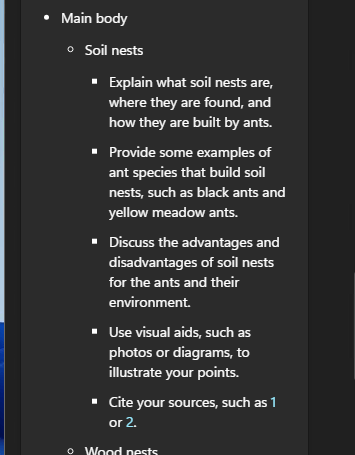
We have had search bars in Windows for many years. Copilot however binds the advanced understanding that AI can bring. Here I asked it to provide an outline for a 15 minute presentation about ant nesting habits and to include reference articles. It provided links to sources for the facts in the presentation. A small section is below:

Images and Snipping Tool

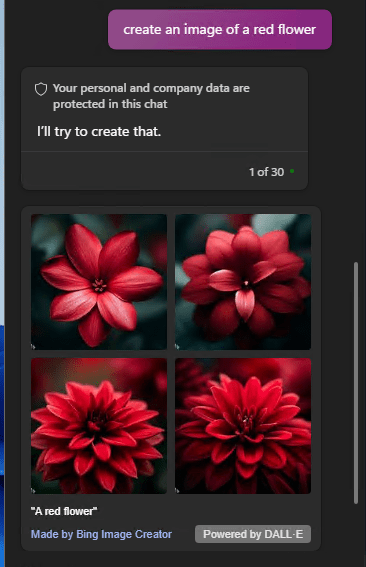
Bing’s AI image creation service, powered by DALL-E, is accessible via Copilot. Just ask it to create any image and off it goes.

When you use the Snipping Tool, Copilot will ask if you want to add the image to the chat. You can ask Copilot about the image.

Choosing Conversation Style

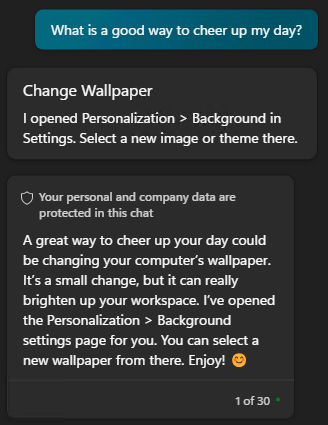
You have probably realised by now that Copilot is quite wordy. It defaults to a conversational style which will help many users who are new to Copilot. When you want to get to the point though, you can change from More Creative (purple) to More Balanced (blue) or More Precise (teal).

Below is an example of how this affects the responses. As you can see, if you’re looking for a warm, cuddly bit of chat, don’t turn to More Precise!

Conclusion

Windows Copilot presents the second evolution of Microsoft’s generative AI offering. The first being Bing Chat and the next being Microsoft Copilot. If you are preparing your organisation for Microsoft Copilot, enabling Windows Copilot is a great way to start training users in a new way to command and converse with their computer.

Windows Copilot is useable and versatile even at this early stage in its life. It will develop, for instance there are more integrations with built-in Windows apps that will are slated for phased rollouts soon.

How to Get Windows Copilot Preview

In this post I will describe how to install the Windows Copilot Preview update.

Introduction

On 26th September 2023, Microsoft released optional update KB5030310, one of the most ground breaking updates to Windows in recent times. With it comes Windows Copilot, which for millions of users worldwide will serve as an introduction to using an AI powered chat interface to enhance their day to day productivity.

Now lets walk through how you can get your hands on it.

Prerequisites

  • A device running Windows 11 22H2.
  • An environment that allows you to manage your Windows Update settings (some corporate networks prevent users from doing this by restrictive policies).

Installing Windows Copilot Preview

The process requires a reboot
  • From the Desktop select Start > Settings > Windows Update.
  • Turn on Get the latest updates as soon as they’re available.
Enabling preview features may reveal additional features unrelated to Windows Copilot. I recommend only doing this on test devices.
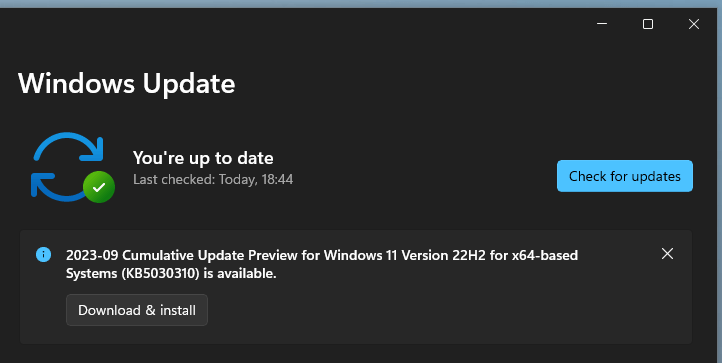
  • Select Check for Updates.
  • The update “2023-09 Cumulative Update Preview for Windows 11 Version 22H2 for x64-based Systems (KB5030310)” will appear.
It is possible to install the update without enabling Get the latest updates as soon as they're available however, Windows Copilot will be hidden.
  • If you don’t see the update, try selecting Advanced options > Optional updates.
  • Install the update.
  • Reboot the device.
  • Login and wait for the Desktop to load. You will now see the Copilot Preview icon
  • Select the icon and you will be presented with Windows Copilot! Enjoy!
The screenshot above was taken while logged in on an Azure AD joined device that had Bing Chat Enterprise enabled. This is what the Protected green shield at the top signifies. 

Summary

Welcome to a new way of commanding your device. As you can see, it is easy to install the preview. When Windows 11 23H2 is released in Q4 2023, Windows Copilot will be enabled by default. Check out Microsoft’s 2 minute video overview of features in this update:

Universal Print with Intune Settings Catalog and upprinterinstaller.exe popups

In 2022, Microsoft added the Universal Print policy CSP to the Intune settings catalog. This replaced the Universal Print Printer Provisioning Tool and brought about a significant time saving when configuring Universal Print deployment policies.

When the Intune policy is sync’d with a device and a user logs in, the upprinterinstaller.exe runs to set up the printer for the user. Unfortunately, this does not run silently, instead displaying a popup for the user as pictured below:

My testing showed that this occurs on both Windows 10 and Windows 11 (edit 31st July 2024: Microsoft say they have fixed this in Windows 11 but I have not tested this since then). Each printer you deploy gets its own individual popup. So if you are deploying lots of printers, expect to see lots of popups. Combining multiple printers in to a single policy did not reduce the number of popups.

They stay on the screen for between 2 to 20 seconds depending on the device’s resource load. I’ve found that when I’ve misconfigured the deployment settings, the popup stays for up to a minute before exiting (presumably timing out).

In all instances, no user interaction is required. It always closes itself and no messages are displayed on the popup other than the .exe name.

Back in November, Microsoft acknowledged this popup as an issue they are investigating but have not provided any further update. It still does not feature on the Universal Print known issues list.

AAD Register Approver

Ever wondered how how you could require Admin consent for Azure AD Registering devices?

In Azure Active Directory any user can, by default, register a Windows device with Azure AD. This gives the device an identity and enables Single Sign-On. This makes it a great option for Bring Your Own Device scenarios. But BYOD should not mean a free for all on which devices a user can join to your environment.

AAD Register Approver is an Azure Logic App that disables any Windows Azure AD registered devices until an Administrator approves them.

Disclaimer: This is a Proof of Concept. I offer no warranty, support or guarantees of any kind for this App. You can use it at your own risk. You are free to make any changes to it that you require. Just be sure to check everything in a test environment before going to production!

Logic App Flow

  • User Azure AD registers a Windows device.
  • App disables the Azure AD object for the new device and sets extensionAttribute1 to ‘Pending Approval’.
  • App emails user notifying them that device approval is pending.
  • App emails Administrator requesting approval.
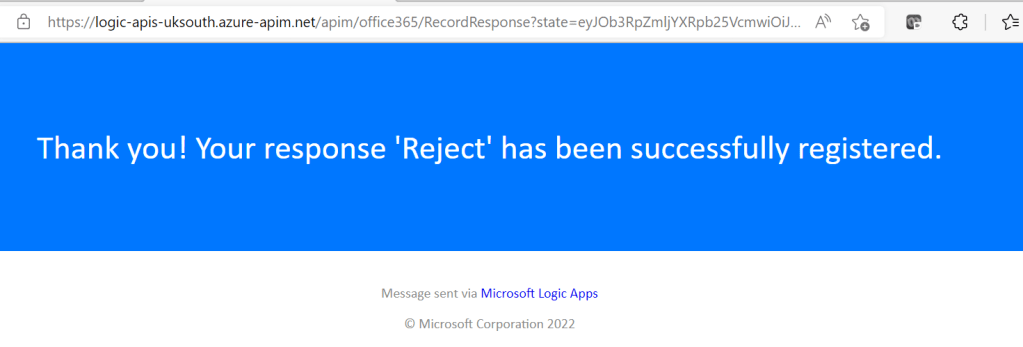
  • Administrator approves or rejects the device using one time use buttons in that email.
  • If approved, the App enables the Azure AD object for the device and sets extensionAttribute1 to ‘Approved’. The user is emailed notifying that the device is approved.
  • If rejected, the App leaves the Azure AD object disabled and sets extensionAttribute1 to ‘Rejected’. It also emails the user notifying that the device was blocked.

Pre-Requisites

  • Office365 mail enabled service account for sending approval emails.
  • Application Administrator role in Azure.
  • Privileged Role Administrator role in Azure AD.

Implement AAD Register Approver

Prepare The Tenant

It is necessary to set the extensionAttribute1 for all legacy devices prior to implementing the Logic App. Failure to do this will result in all Windows AAD Registered devices being immediately disabled and approval emails being sent.

  • Open a Powershell console and run the command:
Install-Module Microsoft.Graph
  • Connect to MS Graph. Accept the permissions but do not grant admin consent for the organisation:
Connect-MgGraph -Scopes "Directory.AccessAsUser.All"
  • Get all target devices in to a variable:
$TargetDevices = Get-MgDevice -Property "createdDateTime,id,deviceId,displayName,operatingSystem,operatingSystemVersion,trustType,extensionAttributes" | ?{($_.operatingSystem -contains ‘Windows’) -and ($_.trustType -contains ‘Workplace’)}
  • Write the extensionAttribute1 Approved to all target devices:
Foreach($Device in $TargetDevices){
$Attributes = @{
          "extensionAttributes" = @{
          "extensionAttribute1" = ‘Approved’}
         }  | ConvertTo-Json
Update-MgDevice -DeviceId $Device.Id -BodyParameter $Attributes 
      }
  • Optionally, delete the Enterprise Application Microsoft Graph Powershell. Before deleting, make sure that no one else is using it by checking:
    • a) the instance you are deleting is the one created on the date that you first ran the Powershell commands
    • b) that only your user account has the permissions applied to it.

App Registration

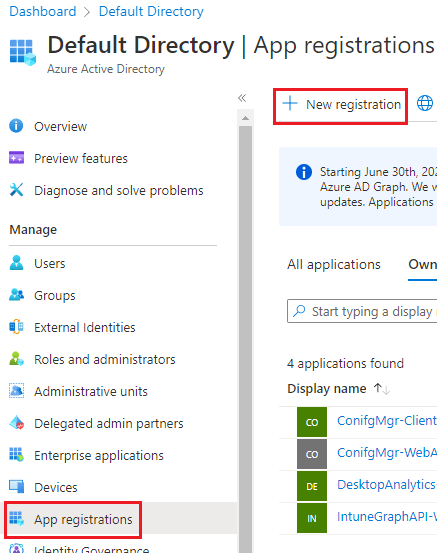
An App Registration is required to expose Graph API for the Logic App to use.

  • In Azure AD > App Registrations > New Registration
  • Enter the Name AAD Register Approver > Leave everything else as it is and select Register.
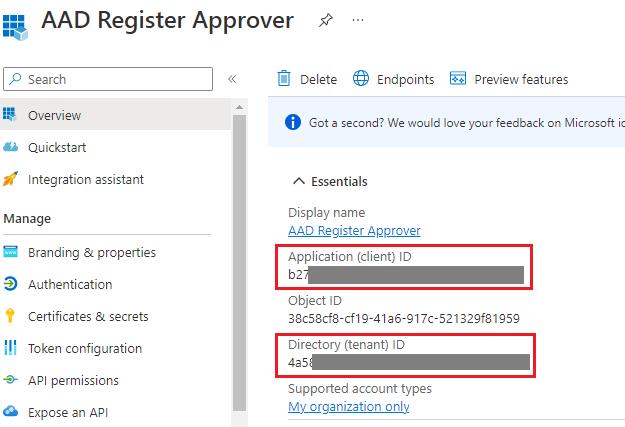
  • On the Overview tab, make a note of the following fields
    • Application (client) ID
    • Directory (tenant) ID
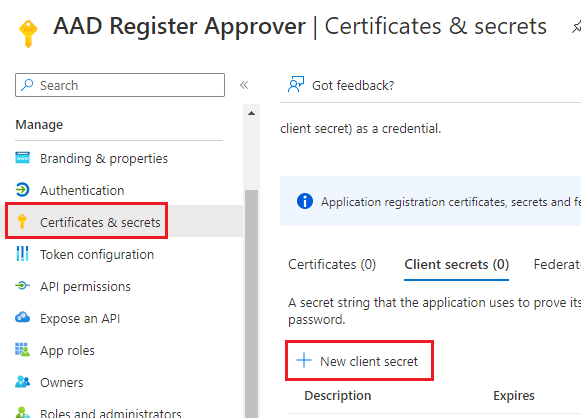
  • On the left, select Certificates & secrets > New client secret.
  • Enter a Description and set the expiry as required > Select Add
  • Make a note of the Value of the secret key

Note: Once you navigate away from this screen you cannot retrieve the key’s value in the portal.

  • Lastly, we need to assign the Cloud Device Administrator role to the Service Principal for the App Registration.
  • In Azure AD > select Roles and administrators.
  • Search for ‘Cloud device’ > select Cloud device administrator
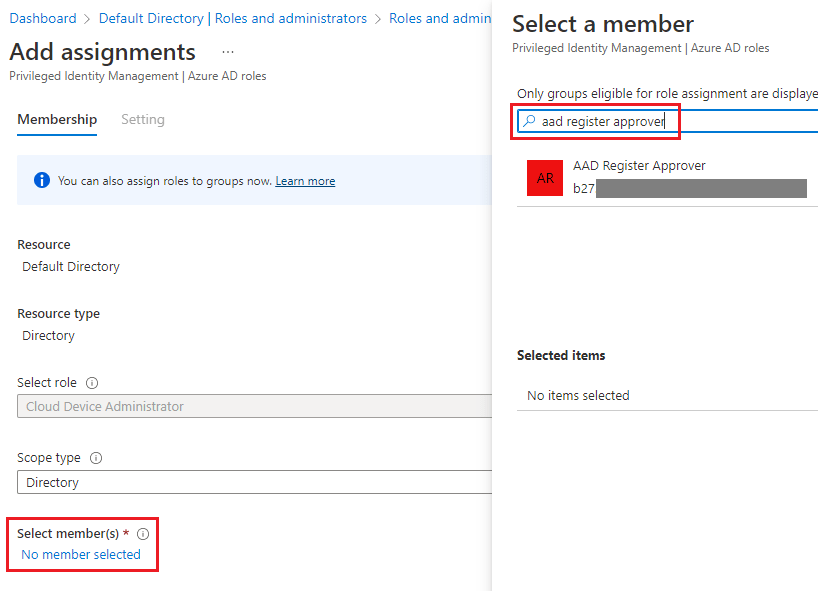
  • Select Add assignments > Select members > You must enter the name of the App Registration in the search field because it will not appear in the initial scrollable list.
  • Select AAD Register Approver > Select Next and enter a justification
  • The service principal is now listed with the Cloud Device Administrator role

Logic App

The Azure Logic App is the key component of AAD Register Approver. It searches for new devices and processes the approval emails.
Note: If you need to use a shared mailbox as the sending email address, then after importing the app, open the Designer and change the ‘Send an email’ actions to ‘Send an email from a shared mailbox’ actions.

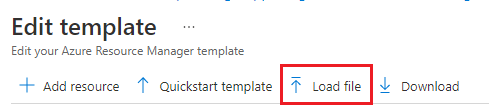
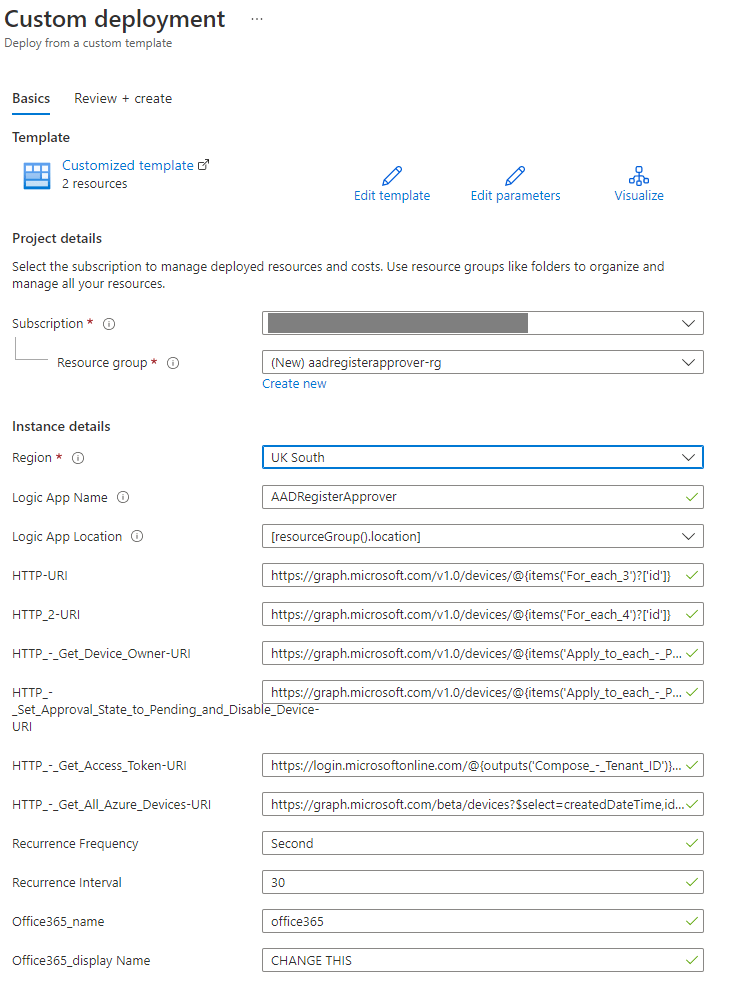
  • Set the Resource Group and Region as required > Create
  • In Resouce Group you will see a Logic App and an API Connection
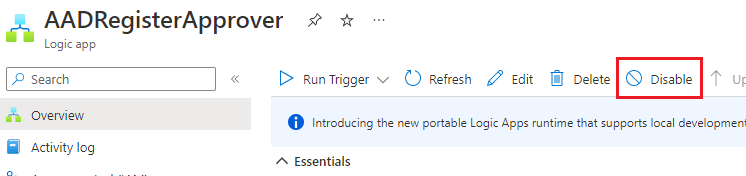
  • Select the new Logic App > Select Disable at the top to stop it from running while you make changes.
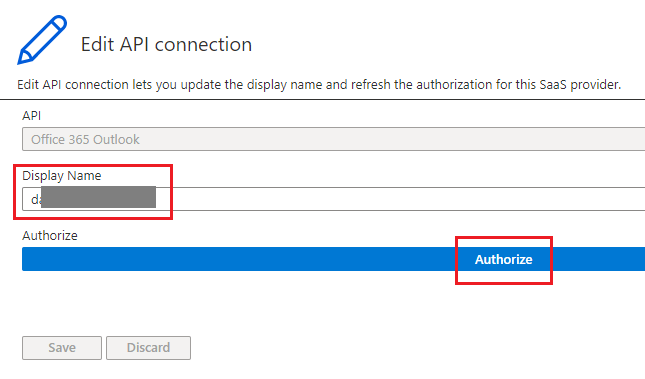
  • On the left, select API Connections > office365 > Edit API connection
  • Change the Display Name to the mailbox that will be used to send emails from > Select Authorise > Login with the mailbox > Save
  • Go back to the Logic App > Overview tab > at the top select Edit
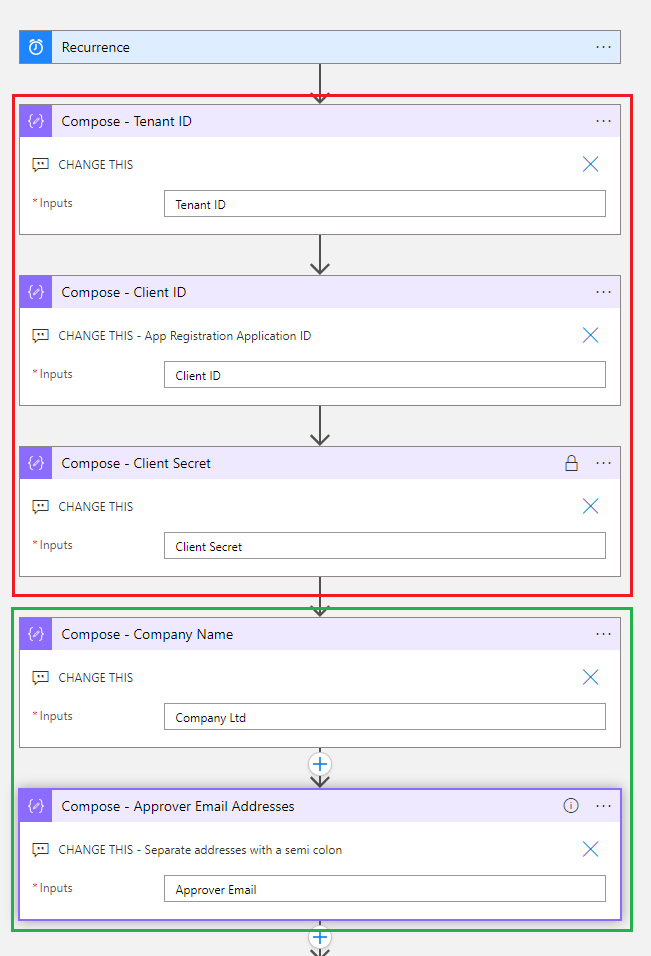
  • Expand the following Compose actions and populate each one with he equivalent information that was copied during the App Registration steps.
    • Compose – Tenant ID
    • Compose – Client ID
    • Compose – Client Secret
  • For the below actions, edit as required:
    • Compose – Company Name
    • Compose – Approver Email Addresses (these are the mailboxes where approval requests will be sent)
  • Once finished editing > select Save
  • Go back to the Logic App’s Overview tab > Select Enable
  • You can monitor and delve in to the processing of each run in the Run History on the Overview tab
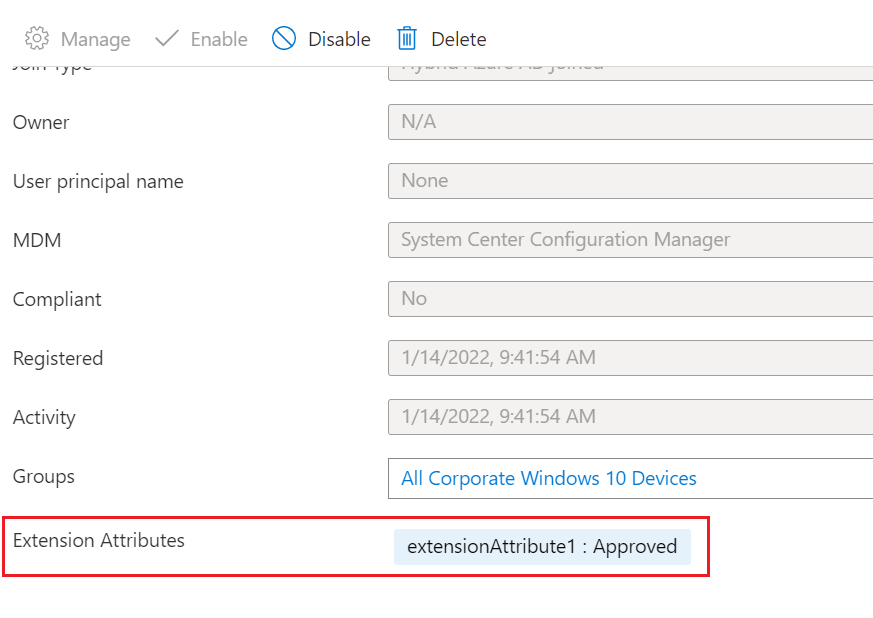
  • You can check the approval state of a device by selecting it in Azure AD. Look for the Extension Attributes section and you will see extensionAttribute1 is either Pending Approval, Approved or Rejected.

Ideas

Here are some other changes you could make to suit your environment.

  • Change the interval in the reoccurrence action. Keep in mind that the more often it runs the more it will cost.
  • Use an Azure Key Vault for storing the Client Secret.
  • Use Teams channels instead of emails for requesting approvals.
  • Use Conditional Access to:
    • Require Multi-Factor Authentication whenever a user tries to Azure AD Register a device.
    • Block authentication from non-Azure AD registered devices.

Windows Sandbox – Once you boot it, you’ll not want to lose it

In this post I will cover what Windows Sandbox is, why it is still a valuable tool and how to get started with it.

Overview

I’ve been speaking to a number of IT professionals and many have either never used Windows Sandbox or even heard of it.

Microsoft introduced the Windows Sandbox feature in Windows 10 1903, so it has been around for quite a while. Microsoft sought to overcome the issue of how you quickly test software on a device without the need to buy a second workstation or deploy Virtual Machines.

  • Windows Sandbox is a Virtual Machine with a twist.
  • When it boots it creates a a sandboxed Windows environment.
  • It securely reads many of the host’s system files to support the VM.
  • When you shut it down, it destroys itself. Leaving nothing behind.
  • You can copy and paste to it and it has internet access by default.

In the most recent Windows 11 builds, you can now restart the Sandbox and it will retain its state. Shutting it down still destroys the VM.

This makes it an ideal tool for quick test and dev work.

Prerequisites

  • Windows 10 Pro, Enterprise or Education build 18305 or Windows 11 (Windows Sandbox is currently not supported on Windows Home edition)
  • AMD64 or (as of Windows 11 Build 22483) ARM64 architecture
  • Virtualization capabilities enabled in BIOS
  • At least 4 GB of RAM (8 GB recommended)
  • At least 1 GB of free disk space (SSD recommended)
  • At least two CPU cores (four cores with hyperthreading recommended)

How to Enable Windows Sandbox

A simple tick box is all that is needed!

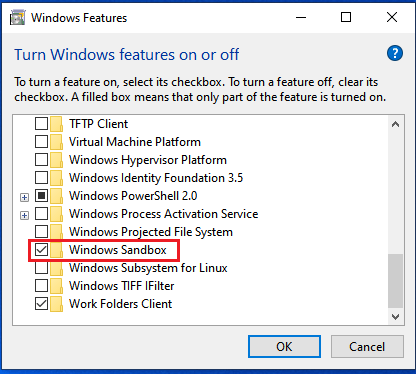
  1. From the Windows desktop, select Start and type “features
  2. From the results, select Turn Windows features on or off.
  3. Scroll to the bottom of the Windows Features window and tick Windows Sandbox.
  4. When prompted, restart the device.

Explore Windows Sandbox

Once enabled and following the restart, you can now find Windows Sandbox in the Start Menu.

Clicking it will launch a brand new virtual machine running Windows. There is no need to login and you already have admin rights.

Out of the box you can:

  • Browse the internet (keep in mind, you can also browse the local network!)
  • Copy and Paste through the console
  • Run Powershell and Powershell ISE consoles
  • Install software

You cannot:

  • Update Windows
  • Make any persistent changes
  • Turn Windows features on or off
  • Browse the Microsoft Store
  • Add additional disks to compliment the 40GB system disk.

Note: The VM shares some system files with the host Operating System. Although the Settings app may show an older feature update of Windows in use (in Windows 10 it says 2004), in fact it is running whichever feature update version you currently have. See point number 2 in the comment below from Paul Bozzay, a Microsoft developer familiar with Windows Sandbox:

Customising Windows Sandbox

It is possible to control the following elements of the Sandbox by using a configuration file:

  • vGPU (virtualized GPU)
  • Networking
  • Mapped folders
  • Logon command
  • Audio input
  • Video input
  • Protected client
  • Printer redirection
  • Clipboard redirection
  • Memory in MB

Let’s look at how to do two common ones. We are going to:

  1. Disable network access
  2. Increase the RAM

Open Notepad and paste in the below fairly self explanatory four lines of XML code:

<Configuration>
 <Networking>Disable</Networking>
 <MemoryInMB>8192</MemoryInMB>
</Configuration>

Save the file with a name of your choice and with the file extension .wsb

For example: Sandbox-8GB-NoNetworking.wsb

You will notice that the file icon will change to the Windows Sandbox icon as long as Windows Sandbox has been enabled.

Open the file to boot a Windows Sandbox VM with 8GB memory and networking disabled.

To close it, select the X at the top right or shut down the VM via the Start Menu within the VM itself.

Conclusion

Windows Sandbox provides a fast way to test software and is easy to set up. One draw back is that in the Windows 10 version, you cannot test software that requires a restart because restarting will destroy the state of the VM. You can overcome this by using Windows 11’s Windows Sandbox implementation.

If you are using it to test untrusted files then it is important that you understand how the VM interacts with the host Operating System. I recommend reading the Windows Sandbox architecture deep dive from Microsoft here:

To make use of all the available customisations, check out the Microsoft documentation here: