How to Disable Windows Copilot using Intune or Group Policy

In this post I will explain how to use Microsoft Intune or Active Directory Group Policy to disable Windows Copilot for one or more users.

Introduction

On 26th September 2023, Microsoft released optional update KB5030310, one of the most ground breaking updates to Windows in recent times. With it comes Windows Copilot, which for millions of users worldwide will serve as an introduction to using an AI powered chat interface to enhance their day to day productivity.

Many organisations are still adjusting to the march to an AI enabled workplace and so need some time to test and understand before unleashing it for their workforce.

Disable with Intune

Edit: 23/10/2024 - in May 2024 Microsoft have deprecated the TurnoffWindowsCopilot policy CSP that is referenced in the steps below. This means the Intune steps in this post will not work. See Microsoft's post on the subject:  https://techcommunity.microsoft.com/t5/windows-it-pro-blog/evolving-copilot-in-windows-for-your-workforce/ba-p/4141999

A recent addition to the Policy CSP is the TurnOffWindowsCopilot setting, documented here. At the time of publishing this post there is no built-in setting in Intune to manage Windows Copilot. So we will create a custom OMA-URI policy:

  • In Intune, select Devices > Windows > Configuration Profiles > Create profile.
  • Under Platform select Windows 10 and later.
  • Under Profile type select Templates.
  • Under Template Name select Custom > select Create.
  • Name the profile something meaningful.
  • Under Configuration Settings select Add.
  • Set the name to something meaningful.
  • Under OMA-URI enter the below text:
./User/Vendor/MSFT/Policy/Config/WindowsAI/TurnOffWindowsCopilot
  • Set Data type to Integer.
  • Set the Value to 1 (setting it to 0 will enable Windows Copilot which is the default setting).
  • Save the policy and assign it to a security group containing users for whom you wish to disable Windows Copilot.
  • No reboot is required. When the user next signs in, the Windows Copilot icon in the taskbar will have been removed.
The Administrative Template that is used in the Group Policy version below cannot be imported in to Intune as a Custom Administrative Template. When you come to apply it to a device it will fail because it tries to modify a protected part of the registry.

Disable with Group Policy

Pre-Requisites

  • Obtain the WindowsCopilot.admx and WindowsCopilot.adml files from the C:\Windows\PolicyDefinitions file of a Windows 11 device that has the KB5030310 installed on it.
    • When Windows 11 23H2 is released it will include the same files.
    • Alternatively, you can download the files from my Github here.

Implement Group Policy

  • Import the WindowsCopilot.admx file to the PolicyDefinitions folder in your domain. This will either be C:\Windows\PolicyDefinitions on your Domain Controllers or if you have a central store configured (which you should do), it will be in a location like:
\\contoso.com\SYSVOL\contoso.com\policies\PolicyDefinitions
  • Import the WindowsCopilot.adml file to the PolicyDefinitions\en-US folder.
  • On a Domain Controller or from a device with the AD DS management tools installed, open Group Policy Management console.
  • Create a new Group Policy Object and name it something meaningful.
  • Edit the GPO, expand User Configuration > Administrative Templates > Windows Components > Windows Copilot
  • Open the setting Turn off Windows Copilot.
  • Set it to Enabled.
  • Select OK. The policy will now look like this:
  • Link the GPO to an Organisational Unit that contains users for whom you wish to disable Windows Copilot.
  • No reboot is required. When the user next signs in, the Windows Copilot icon in the taskbar will have been removed.

Summary

Windows Copilot provides an opportunity for users to begin experimenting with a new way to command their computers. In a production environment, it is important to use deployment rings such as Test, Pilot and Broad to prepare for and understand the impact of any change to the environment. An ability to roll back for individual users is most welcome. Fortunately, Microsoft have made it easy to switch Windows Copilot on and off on a targeted basis.
AAD Register Approver

Ever wondered how how you could require Admin consent for Azure AD Registering devices?

In Azure Active Directory any user can, by default, register a Windows device with Azure AD. This gives the device an identity and enables Single Sign-On. This makes it a great option for Bring Your Own Device scenarios. But BYOD should not mean a free for all on which devices a user can join to your environment.

AAD Register Approver is an Azure Logic App that disables any Windows Azure AD registered devices until an Administrator approves them.

Disclaimer: This is a Proof of Concept. I offer no warranty, support or guarantees of any kind for this App. You can use it at your own risk. You are free to make any changes to it that you require. Just be sure to check everything in a test environment before going to production!

Logic App Flow

  • User Azure AD registers a Windows device.
  • App disables the Azure AD object for the new device and sets extensionAttribute1 to ‘Pending Approval’.
  • App emails user notifying them that device approval is pending.
  • App emails Administrator requesting approval.
  • Administrator approves or rejects the device using one time use buttons in that email.
  • If approved, the App enables the Azure AD object for the device and sets extensionAttribute1 to ‘Approved’. The user is emailed notifying that the device is approved.
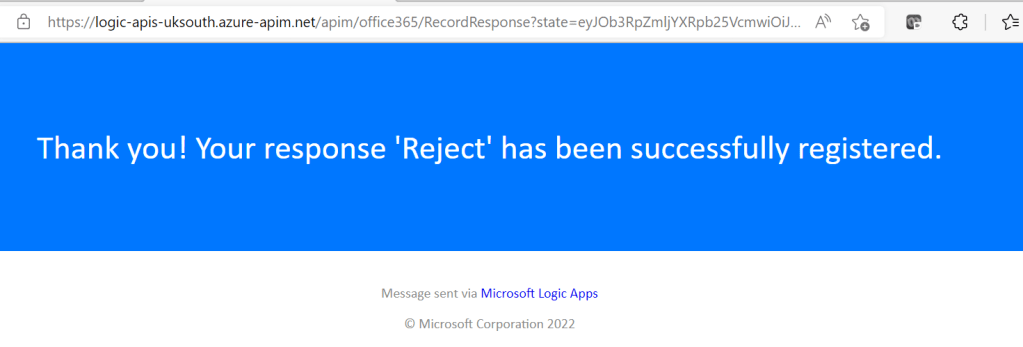
  • If rejected, the App leaves the Azure AD object disabled and sets extensionAttribute1 to ‘Rejected’. It also emails the user notifying that the device was blocked.

Pre-Requisites

  • Office365 mail enabled service account for sending approval emails.
  • Application Administrator role in Azure.
  • Privileged Role Administrator role in Azure AD.

Implement AAD Register Approver

Prepare The Tenant

It is necessary to set the extensionAttribute1 for all legacy devices prior to implementing the Logic App. Failure to do this will result in all Windows AAD Registered devices being immediately disabled and approval emails being sent.

  • Open a Powershell console and run the command:
Install-Module Microsoft.Graph
  • Connect to MS Graph. Accept the permissions but do not grant admin consent for the organisation:
Connect-MgGraph -Scopes "Directory.AccessAsUser.All"
  • Get all target devices in to a variable:
$TargetDevices = Get-MgDevice -Property "createdDateTime,id,deviceId,displayName,operatingSystem,operatingSystemVersion,trustType,extensionAttributes" | ?{($_.operatingSystem -contains ‘Windows’) -and ($_.trustType -contains ‘Workplace’)}
  • Write the extensionAttribute1 Approved to all target devices:
Foreach($Device in $TargetDevices){
$Attributes = @{
          "extensionAttributes" = @{
          "extensionAttribute1" = ‘Approved’}
         }  | ConvertTo-Json
Update-MgDevice -DeviceId $Device.Id -BodyParameter $Attributes 
      }
  • Optionally, delete the Enterprise Application Microsoft Graph Powershell. Before deleting, make sure that no one else is using it by checking:
    • a) the instance you are deleting is the one created on the date that you first ran the Powershell commands
    • b) that only your user account has the permissions applied to it.

App Registration

An App Registration is required to expose Graph API for the Logic App to use.

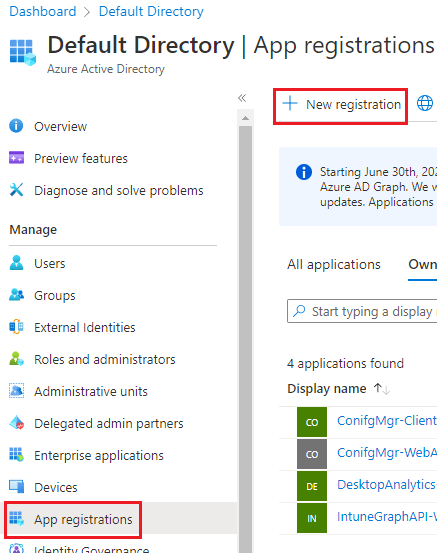
  • In Azure AD > App Registrations > New Registration
  • Enter the Name AAD Register Approver > Leave everything else as it is and select Register.
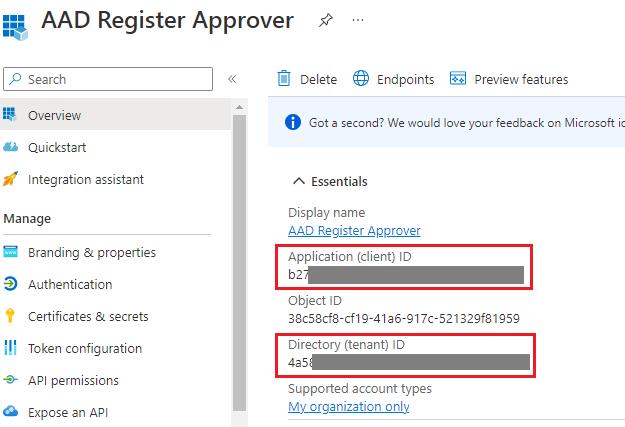
  • On the Overview tab, make a note of the following fields
    • Application (client) ID
    • Directory (tenant) ID
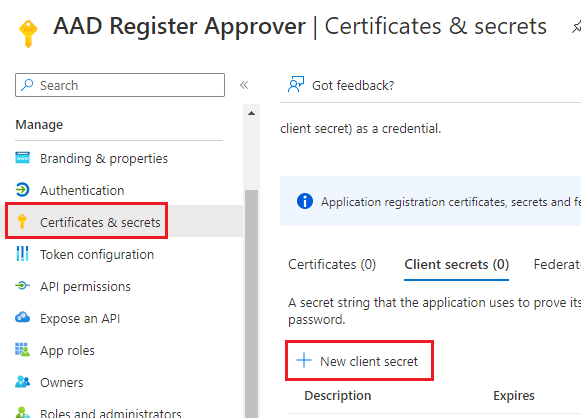
  • On the left, select Certificates & secrets > New client secret.
  • Enter a Description and set the expiry as required > Select Add
  • Make a note of the Value of the secret key

Note: Once you navigate away from this screen you cannot retrieve the key’s value in the portal.

  • Lastly, we need to assign the Cloud Device Administrator role to the Service Principal for the App Registration.
  • In Azure AD > select Roles and administrators.
  • Search for ‘Cloud device’ > select Cloud device administrator
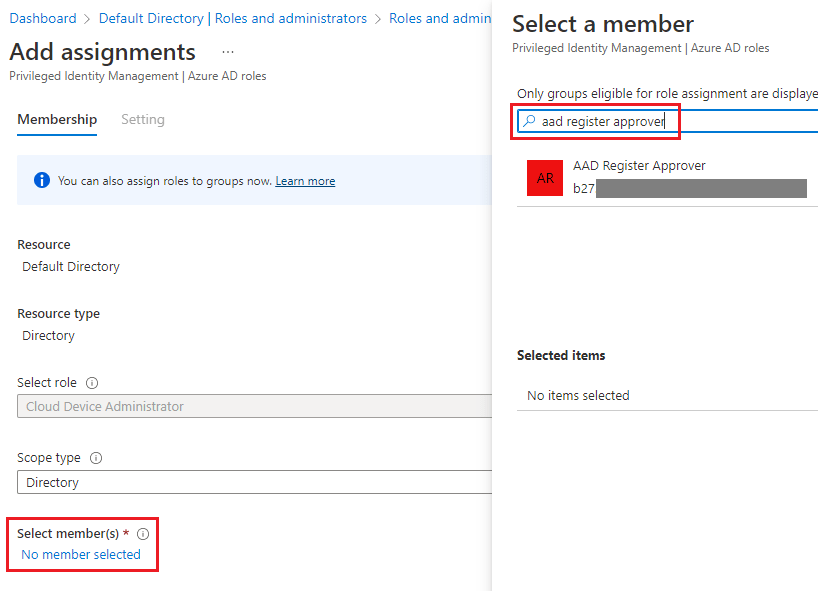
  • Select Add assignments > Select members > You must enter the name of the App Registration in the search field because it will not appear in the initial scrollable list.
  • Select AAD Register Approver > Select Next and enter a justification
  • The service principal is now listed with the Cloud Device Administrator role

Logic App

The Azure Logic App is the key component of AAD Register Approver. It searches for new devices and processes the approval emails.
Note: If you need to use a shared mailbox as the sending email address, then after importing the app, open the Designer and change the ‘Send an email’ actions to ‘Send an email from a shared mailbox’ actions.

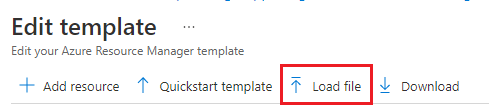
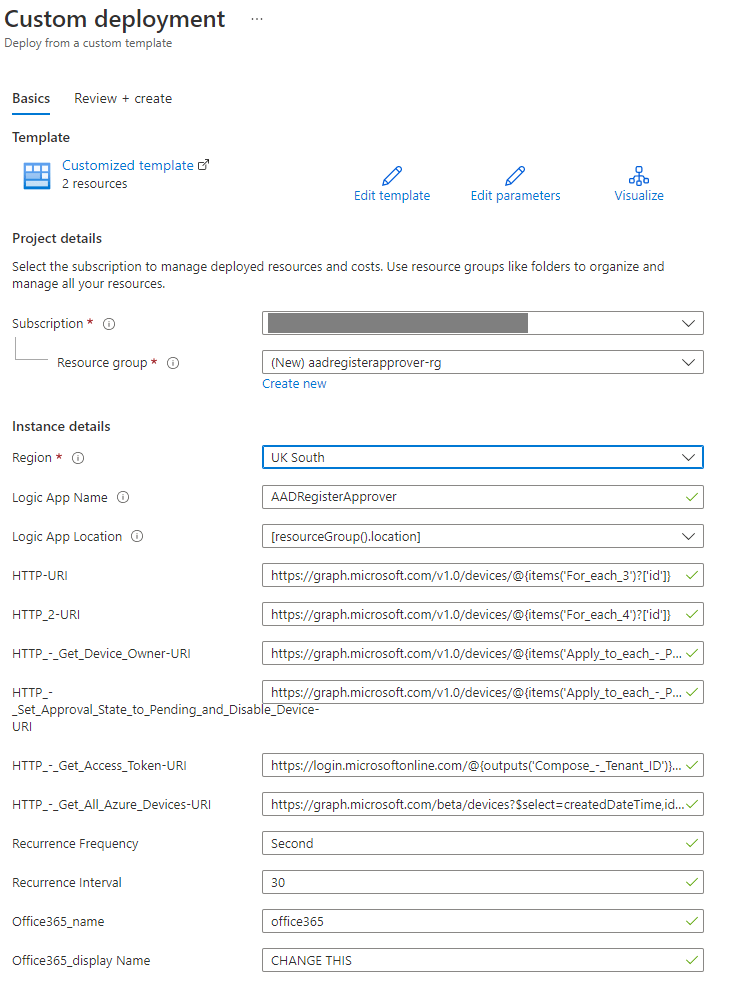
  • Set the Resource Group and Region as required > Create
  • In Resouce Group you will see a Logic App and an API Connection
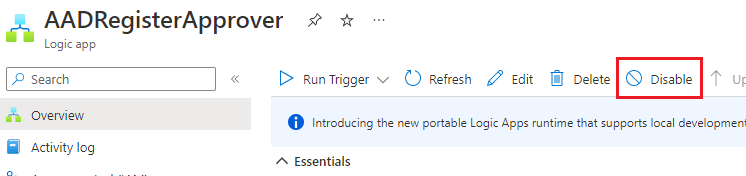
  • Select the new Logic App > Select Disable at the top to stop it from running while you make changes.
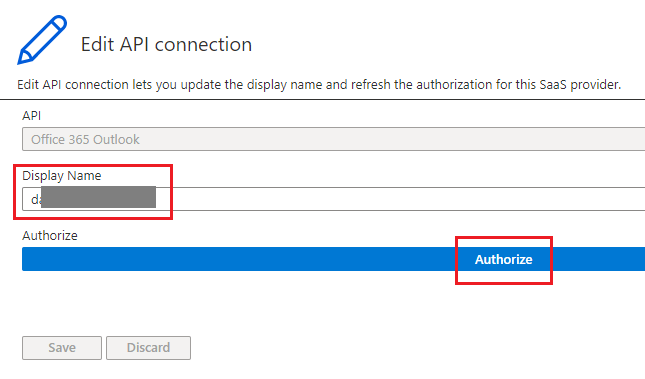
  • On the left, select API Connections > office365 > Edit API connection
  • Change the Display Name to the mailbox that will be used to send emails from > Select Authorise > Login with the mailbox > Save
  • Go back to the Logic App > Overview tab > at the top select Edit
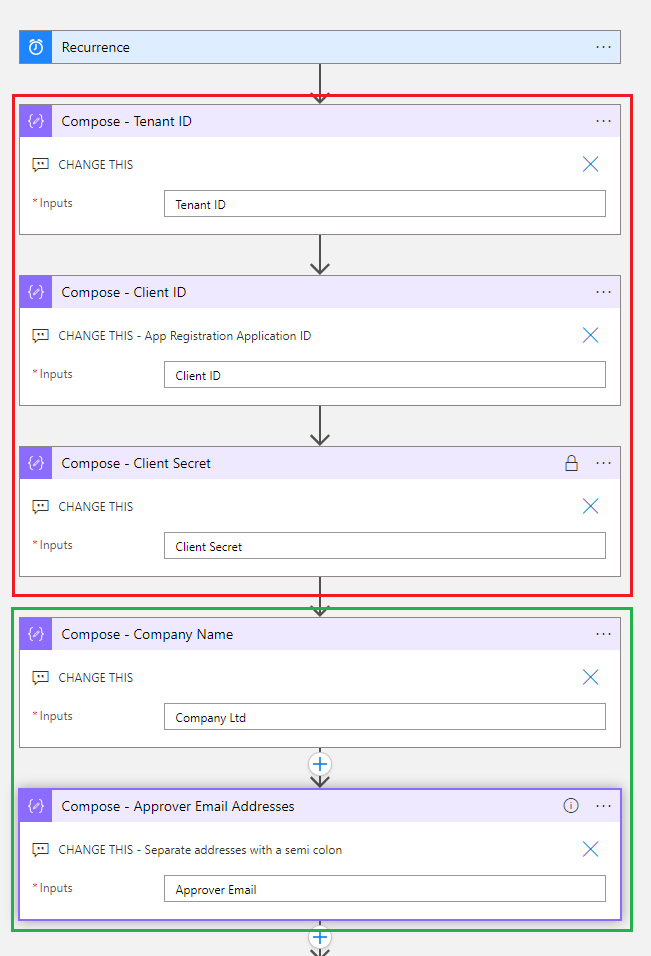
  • Expand the following Compose actions and populate each one with he equivalent information that was copied during the App Registration steps.
    • Compose – Tenant ID
    • Compose – Client ID
    • Compose – Client Secret
  • For the below actions, edit as required:
    • Compose – Company Name
    • Compose – Approver Email Addresses (these are the mailboxes where approval requests will be sent)
  • Once finished editing > select Save
  • Go back to the Logic App’s Overview tab > Select Enable
  • You can monitor and delve in to the processing of each run in the Run History on the Overview tab
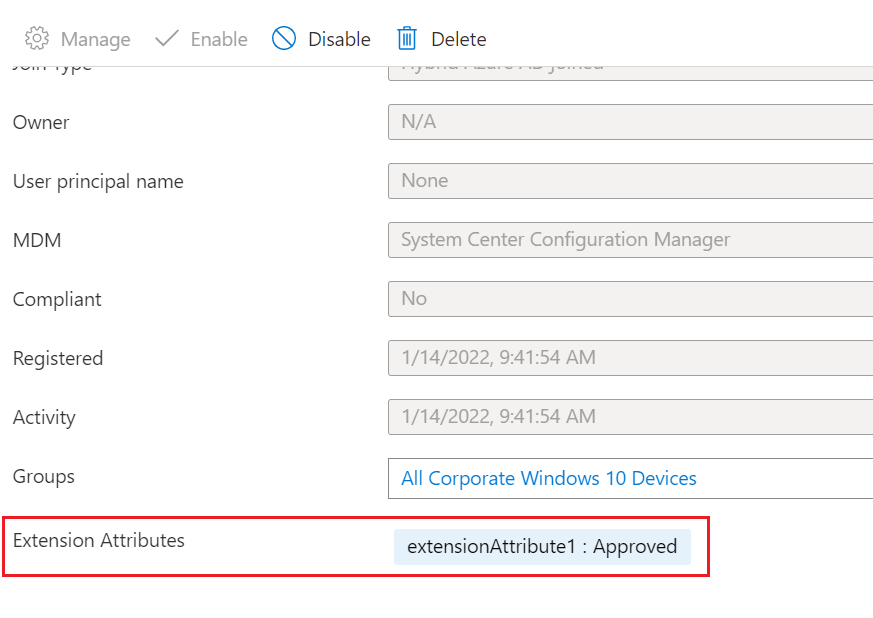
  • You can check the approval state of a device by selecting it in Azure AD. Look for the Extension Attributes section and you will see extensionAttribute1 is either Pending Approval, Approved or Rejected.

Ideas

Here are some other changes you could make to suit your environment.

  • Change the interval in the reoccurrence action. Keep in mind that the more often it runs the more it will cost.
  • Use an Azure Key Vault for storing the Client Secret.
  • Use Teams channels instead of emails for requesting approvals.
  • Use Conditional Access to:
    • Require Multi-Factor Authentication whenever a user tries to Azure AD Register a device.
    • Block authentication from non-Azure AD registered devices.

Microsoft Local Administrator Password Solution – Part 2 – Accessing & Resetting Passwords

LAPS is a fantastic free tool from Microsoft that manages Domain Member computer local account passwords. https://www.microsoft.com/en-us/download/details.aspx?id=46899

I have deployed LAPS for a number of Enterprise customers to use for managing their Domain Member Windows Server local Administrator account passwords.

In Part 2 of this blog series we will look at the different ways to view and reset the passwords.

Part 1 of this blog series “Deployment Considerations”

Part 3 of this blog series “Monitoring”

Part 4 of this blog series “Auditing” [Coming Soon]

Key Points

  • To view the LAPS passwords, you must be granted the All Extended Attributes permission over the object in Active Directory.
  • If the Group Policy setting “Do not allow password expiration time longer than required by policy” is set to Enabled; it will not be possible to set an expiry beyond the maximum LAPS Password Age Group Policy setting.

Graphical User Interface

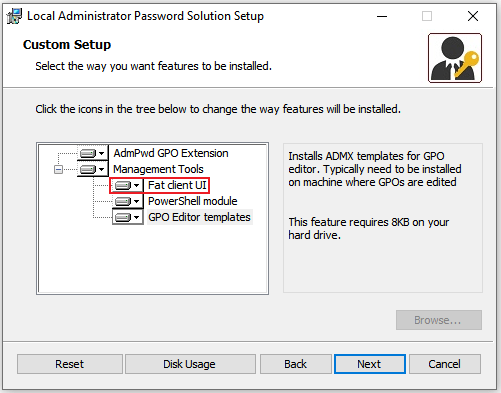
When you install LAPS you are given the option of Management Tools to install.

LAPS Setup Options

The Fat client UI will install a simple app called AdmPwd.UI to the default install location %SYSTEMDRIVE%\Program Files\LAPS

When launched you can search for the computer name. The password will displayed along with the password expiration date.

Fat client UI

To manually reset the password, just click the Set button in LAPS UI tool. When a Group Policy refresh runs on the target machine, the password will be reset.

You can set a future date for the password to expire by clicking the drop down icon on the New expiration time field.

Powershell

When you install LAPS you are given the option of installing the Powershell Module.

Powershell module install

From a Powershell prompt, run the following commands to retrieve a LAPS password:

Import-Module AdmPwd.PS
Get-AdmPwdPassword -ComputerName "computername"

Retrieving the LAPS password using Powershell

To set a new expiration time, run the following commands:

Import-Module AdmPwd.PS
Reset-AdmPwdPassword -ComputerName "computername" `
-WhenEffective "date time"

In the example below the password is being set to expire on 30th November 2019 at 10am.

By using Get-AdmPassword we can confirm that ExpirationTimestamp attribute has been updated.

When the server refreshes its GPO after 30th November 10am, it will read the expiration attribute and trigger

  • The password only resets if the client is able to write the new password to the AD computer object.
  • If the client does not have permission to do this or a Domain Controller cannot be contacted at that time then the new password is discarded before it is applied to the local admin account.
  • Writing the password to AD before the password is written to the local admin account protects against network interruptions during the process.

ADSI Edit

1. On any Domain Controller (or console running Active Directory Remote Server Administration Tools) open ADSI Edit by Right clicking the Start button and select Run.

2. Enter ADSIEdit.msc and select OK.

Run ADSIEdit.msc

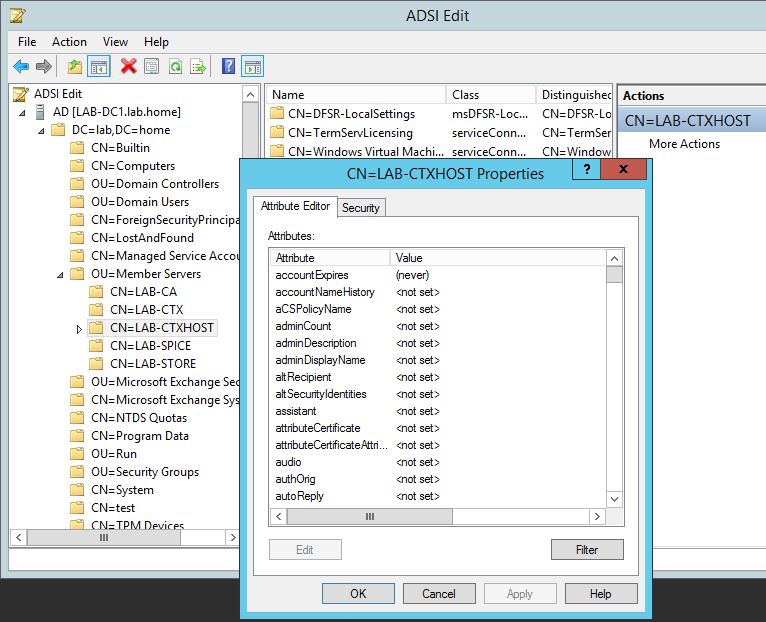
3. Right click ADSI Edit in the left hand menu and select Connect to. Choose the Default Naming Context.

Connect to Default naming context

4. On the left, navigate down through the Active Directory structure by double clicking.

5. Browse to the client’s object, right click it and select properties.

Computer object

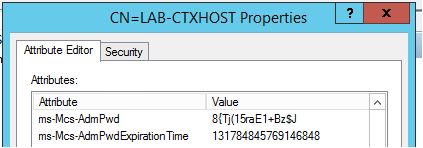
6. On the Attribute Editor tab, scroll to the attributes:

Password attribute

ms-Mcs-AdmPwd – Stores the password in clear text

ms-Mcs-AdmPwdExpirationTime – Stores the time to reset the password

  • The expiration time is displayed in computer date format. It must be manually converted to a readable date format.
  • You can set the expiration time here by converting the desired date back to computer date format and editing the attribute within ADSIEdit.

List all Windows Servers in a Domain using Windows Powershell

Get-ADComputer -Filter * -Properties * | ?{$_.OperatingSystem -like "*Server*"}


What’s happening here?

  1. Get all computers in the domain (filter -*) and all properties (the property we want is not in the filtered properties that you get if you just run Get-ADComputer without -Properties *)
  2. Send those computers through a Where-Object (?{}) filter block.
  3. Filter by the attribute OperatingSystem containing the word ‘Server’

You can pipe this again and select some filtered attributes. For instance, if you just want the name and the location in AD then you run it like this:

Get-ADComputer -Filter * -Properties * | ?{$_.OperatingSystem -like "*Server*"} | select Name, DistinguishedName