
In this post, I explain my first impressions of Windows Copilot along with some tips for getting started with it.

Introduction
On 26th September 2023, Microsoft released optional update KB5030310, one of the most ground breaking updates to Windows in recent times. With it comes Windows Copilot, which for millions of users worldwide will serve as an introduction to using an AI powered chat interface to enhance their day to day productivity.
Installing Windows Copilot Preview
Check out my guide for installing the Windows Copilot Preview.
Accessing Windows Copilot
Once installed, the Windows Copilot Preview icon appears in the taskbar.


Clicking the Copilot icon opens the full vertical length chat interface.
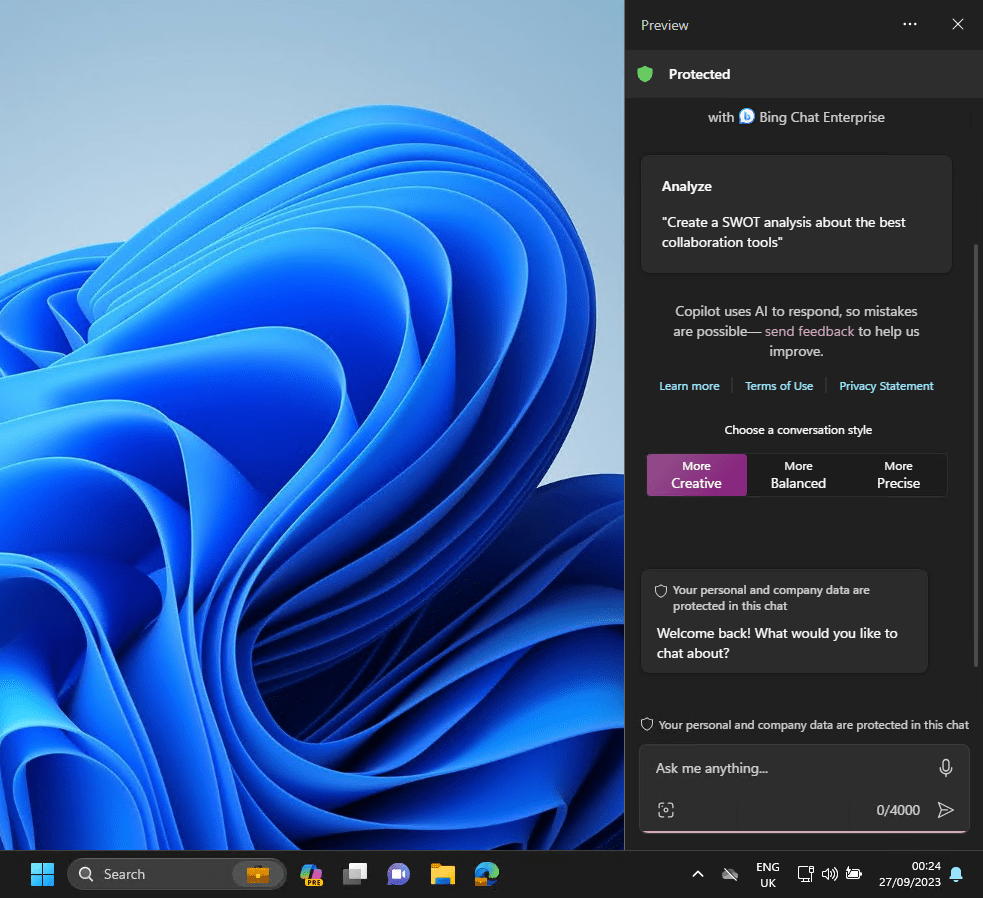
The screenshot above was taken while logged in on an Azure AD joined device that had Bing Chat Enterprise enabled. This is what the Protected green shield at the top signifies.
Changing Device Settings
Frist things first. Settings in Windows are buried all over the place. Copilot helps by you simply telling it what you want to do. Copilot will respond with a question with Yes and No thanks buttons. In the video below, I ask it to set Windows to the light theme.
Compound Task
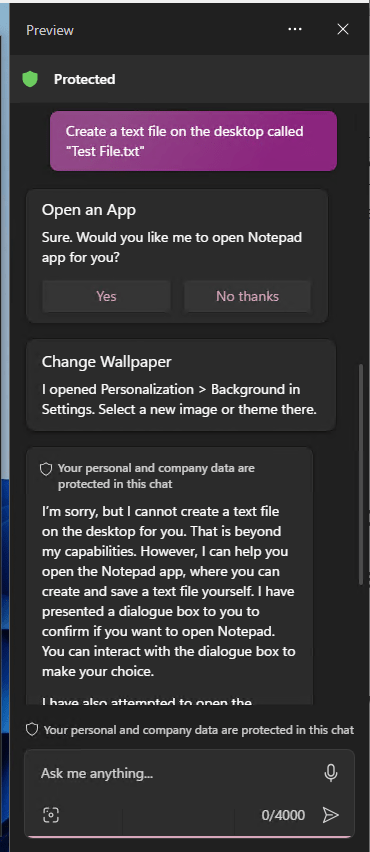
Trying something more advanced, I asked it to create a text file on the desktop. It offered to open Notepad for me and apologised for not being able to perform the end to end task itself. It also opened the Desktop Background settings window in case I wanted to change the theme.
Getting advice for troubleshooting
Telling Copilot that my workstation was slow it presented me with a couple of options to get started. First were Yes/No questions for opening Task Manager or opening ‘a troubleshooter’. It followed that with some guidance text.
A bit of a fail though was that clicking ‘open a troubleshooter’ failed saying that the Get Help app wasn’t installed!


Summarising a Web Page
Let’s get to the really clever stuff. Windows Copilot integrates with Bing Chat (Bing Chat Enterprise if its enabled in your Azure tenant). This brings some cool features. In the video below I am browsing the United States Constitution, a large document. Copilot summarises this in a concise manner.
- I found that asking it to summarise the Wikipedia page of The River Thames or the recent amendments to an IEEE standard resulted in it largely regurgitating verbatim what was on the web page.
- I think this feature will work best when not attempting to summarise highly technical documents (the IEEE standard) or indeed, text that is already very concise like the Wikipedia page.
- Simply typing summarise this page sometimes did not trigger the Edge integration, instead it described what the Copilot window was for. Typing summarise this web page seemed to always work.
The first time you try to use the Copilot > Edge integration, you will need to give permission to share Edge browser content with Copilot when it prompts you.
Integration with Bing Search
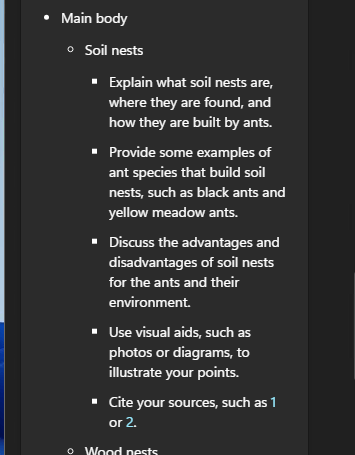
We have had search bars in Windows for many years. Copilot however binds the advanced understanding that AI can bring. Here I asked it to provide an outline for a 15 minute presentation about ant nesting habits and to include reference articles. It provided links to sources for the facts in the presentation. A small section is below:
Images and Snipping Tool
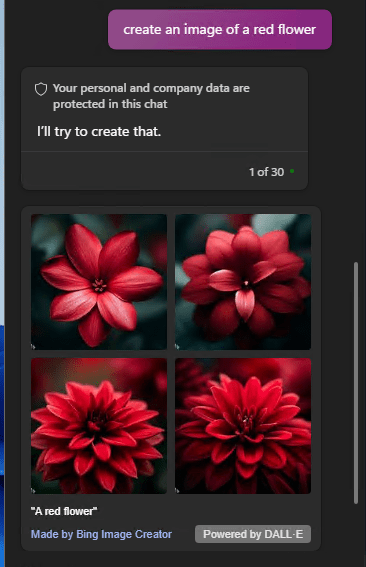
Bing’s AI image creation service, powered by DALL-E, is accessible via Copilot. Just ask it to create any image and off it goes.
When you use the Snipping Tool, Copilot will ask if you want to add the image to the chat. You can ask Copilot about the image.

Choosing Conversation Style
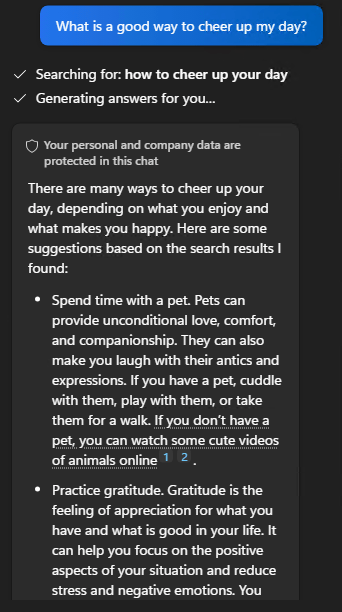
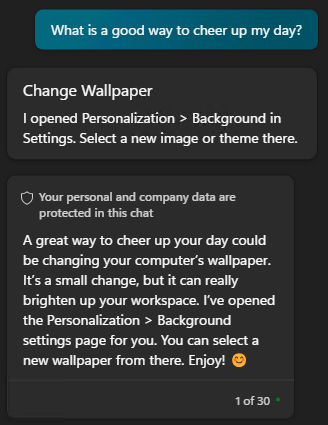
You have probably realised by now that Copilot is quite wordy. It defaults to a conversational style which will help many users who are new to Copilot. When you want to get to the point though, you can change from More Creative (purple) to More Balanced (blue) or More Precise (teal).
Below is an example of how this affects the responses. As you can see, if you’re looking for a warm, cuddly bit of chat, don’t turn to More Precise!

Conclusion
Windows Copilot presents the second evolution of Microsoft’s generative AI offering. The first being Bing Chat and the next being Microsoft Copilot. If you are preparing your organisation for Microsoft Copilot, enabling Windows Copilot is a great way to start training users in a new way to command and converse with their computer.
Windows Copilot is useable and versatile even at this early stage in its life. It will develop, for instance there are more integrations with built-in Windows apps that will are slated for phased rollouts soon.
 Tech Highs and Headaches